AI Models & Generation

30 AI Image Prompts (and Editing Prompts) for Seedream 5.5

ChatCut Team
35 min read
30 AI Image Prompts (and Editing Prompts) for Seedream 5.5
Contents
  1. Key Takeaways
  2. Choose your AI image prompts by task
  3. How to use and check these Seedream prompts
  4. AI image prompts for transparent assets and stickers
  5. AI image prompts for small text, menus, and infographics
  6. AI image generator prompts for posters and ads
  7. AI image prompts for product photography
  8. Seedream 5.5 prompts for portraits and cinematic scenes
  9. AI image editing prompts for multi-round revisions
  10. Fix an AI image prompt after a weak result
  11. Take a finished image into a ChatCut video
  12. Frequently asked questions

Good AI image prompts specify the subject, composition, lighting, materials, exact text, and details to preserve. These 30 AI image prompts and AI image editing prompts cover transparent assets, menus, posters, products, portraits, and successive revisions in Seedream 5.5. Copy a card or choose Open in ChatCut to carry its prompt into the editor.

Key Takeaways

  • Choose the deliverable first. A sticker needs a complete silhouette, a menu needs exact copy, and a product image needs believable materials and contact shadows.
  • Give edits a source and a boundary. Prompts 26–28 form a portrait-editing sequence, and 29–30 revise the poster from prompt 11.
  • Check the exported image. Inspect alpha edges, small lettering, product geometry, and details carried through successive edits.
  • Keep a useful still in the project. In ChatCut, it can become a timeline asset or the first frame for a generated video.

Choose your AI image prompts by task

GroupPrompt numbersStarting inputWhat to inspect
Transparent assets and stickers1–5TextAlpha, fine edges, separated silhouettes
Small text, menus, and infographics6–10Text with supplied words and valuesSpelling, reading order, chart proportions
Posters and ads11–15TextCopy hierarchy, spacing, hands
Product photography16–20Text for fictional productsShape, materials, reflections, scale
Portraits and cinematic scenes21–25TextSkin, anatomy, lighting, staging
Multi-round image editing26–30Previous result specified on each cardIdentity, earlier edits, untouched copy

How to use and check these Seedream prompts

For a new image, write deliverable + subject + layout + lighting and materials + exact copy + constraints. For an edit, write source image + one change + details to preserve. The cards include concrete subjects so you can run them as written, then adapt one detail at a time.
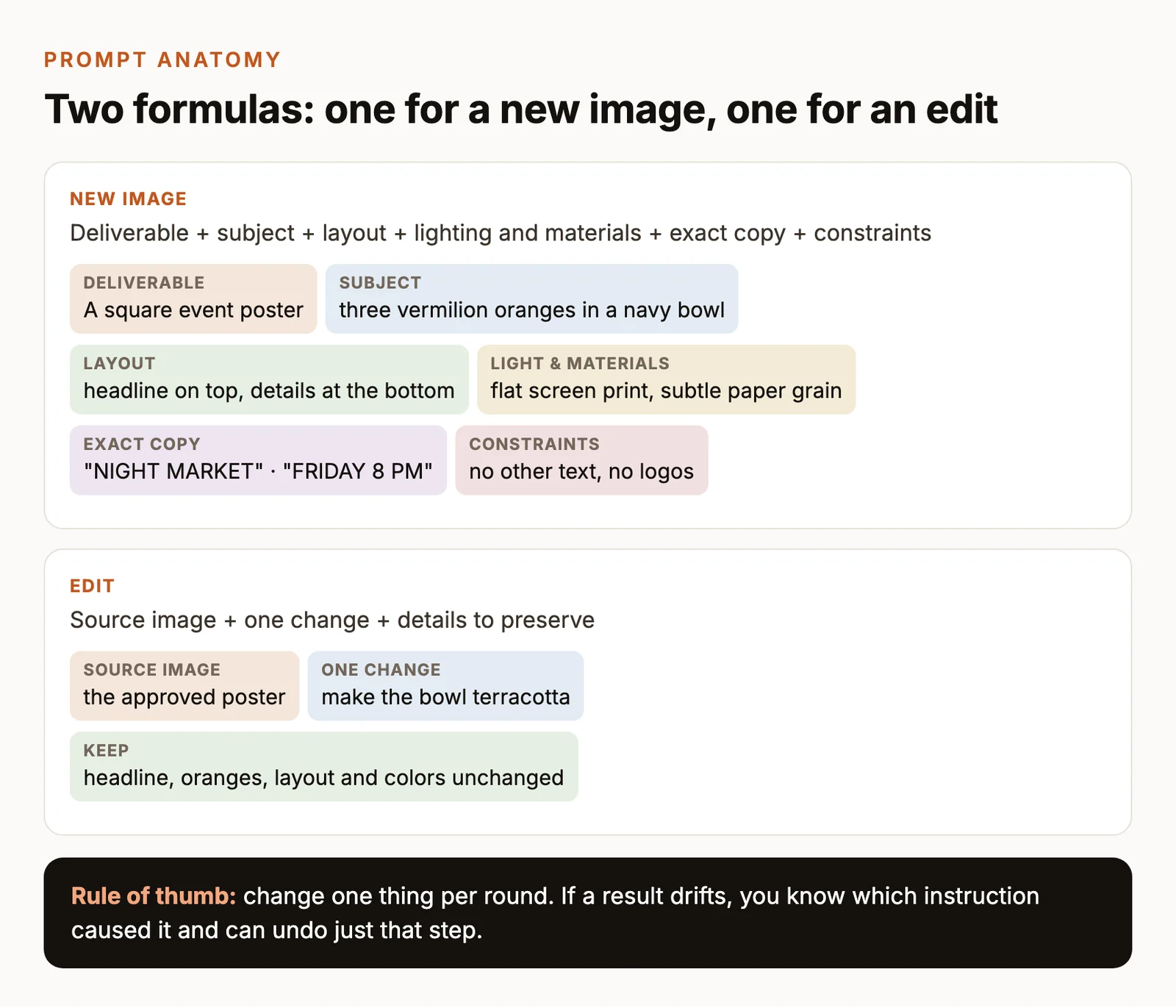
Prompt anatomy diagram: a new-image prompt split into deliverable, subject, layout, light and materials, exact copy and constraints; an edit prompt split into source image, one change and details to keep.
The two prompt formulas used throughout this collection, shown on the night-market poster example.

ByteDance introduced Seedream 5.5 on November 9, 2026, emphasizing successive editing, native alpha-channel output, natural materials and skin, and clearer small text. Those capabilities guide the tasks in this collection. Read the official announcement.

Open a card in ChatCut, choose Seedream 5.5, and review the requested format before generating. For an editing card, attach its specified previous image. The button transfers the prompt text, so supply that input image in the project.

Production settingBrief for this collection
ModelSeedream 5.5 in ChatCut
Prompt output targetThe prompts request 1K; review the available output sizes in ChatCut before generating.
Requested shapeGiven in each prompt; this describes the intended composition.
Available size and ratio controlsPick Seedream 5.5 in the model menu and review the available size and aspect-ratio options before generating.
Transparent output controlRequest transparency in the prompt, review the available background options, and inspect the exported alpha channel before compositing.
CreditsReview the displayed credit cost before submitting a generation or edit; use the current in-app quote for your chosen settings.
Generation and review recordEvery displayed example was generated with Seedream 5.5 in ChatCut on November 13, 2026, at 1K with the ratio named in its prompt, with transparent background turned on for prompts 1–5. Each image is the first result except prompt 12, which took two attempts. Edits 26–30 used the previous result as the attached input, and every result was reviewed against its Check.

The ratios below were passed as the aspect-ratio setting for each example, and the images are Seedream 5.5 output, only resized and converted to WebP for this page. Retain every editing input and inspect the full-size export against its Check before accepting a result.

Result review All 30 images are Seedream 5.5 results from these exact prompts. Every supplied word, price, time, and chart value rendered correctly, including the Chinese and Japanese lines, and the five transparent assets came back with real alpha channels. The edits stayed local: each round changed only the scarf, brooch, date, or footer it named. The misses were additions rather than errors, such as an extra axis title, a decorative label, or a figure the prompt did not ask for; the Check under each card notes them.

For the model’s broader capabilities, see our Seedream 5.5 guide. For the version family, see Seedream explained.

Open Seedream 5.5 and make your next image in ChatCut.Download DesktopDownload for macOSDownload for WindowsUse Seedream 5.5

AI image prompts for transparent assets and stickers

Ask for clear space around the subject and genuine transparent output. ByteDance’s model page shows fully transparent and semi-transparent assets, including detailed cutouts and textured lettering. See the official examples.

1. A flamingo pool-float sticker

Use it for a reaction sticker or a character overlay on a video.

Try this promptOpen in ChatCut
Use Seedream 5.5 to create a square 1K sticker of a flamingo in heart-shaped sunglasses floating on a lemon-yellow swim ring. Flat colours in hot pink, tangerine and lemon, bold dark outlines and a thick white sticker border. Center it with clear space around. Transparent background, no text.
Flamingo sticker wearing heart-shaped sunglasses on a yellow swim ring, with a thick white border on a transparent background.
Prompt 01 result generated with Seedream 5.5 in ChatCut.

Check Place the sticker over light and dark backgrounds and look for opaque corners, clipped edges, or a halo around the border. In this result, 56% of the pixels are fully transparent and under 1% are partly transparent, so only the anti-aliased edge of the white border blends into the background.

2. Six matching summer stickers

Use it for a coordinated set of small decorative assets.

Try this promptOpen in ChatCut
Use Seedream 5.5 to create a square 1K sheet of six summer stickers in two rows of three: a lemon, a palm tree, a film camera, an ice lolly, a smiling sun and a beach ball. Same flat screen-print style for all six in tomato red, cobalt and lemon yellow, thick white borders, wide gaps between stickers. Transparent background, no text.
Six summer stickers in two rows of three: a lemon, palm tree, camera, ice lolly, smiling sun, and beach ball, each with a white border on a transparent background.
Prompt 02 result generated with Seedream 5.5 in ChatCut.

Check Count six complete stickers and inspect every gap before cropping the sheet. This result has all six in two rows of three, in the same red, blue, and yellow print style, each inside its own white border with transparent space around it.

3. A soap-bubble overlay

Use it for a textured accent over footage or a product image.
Try this promptOpen in ChatCut
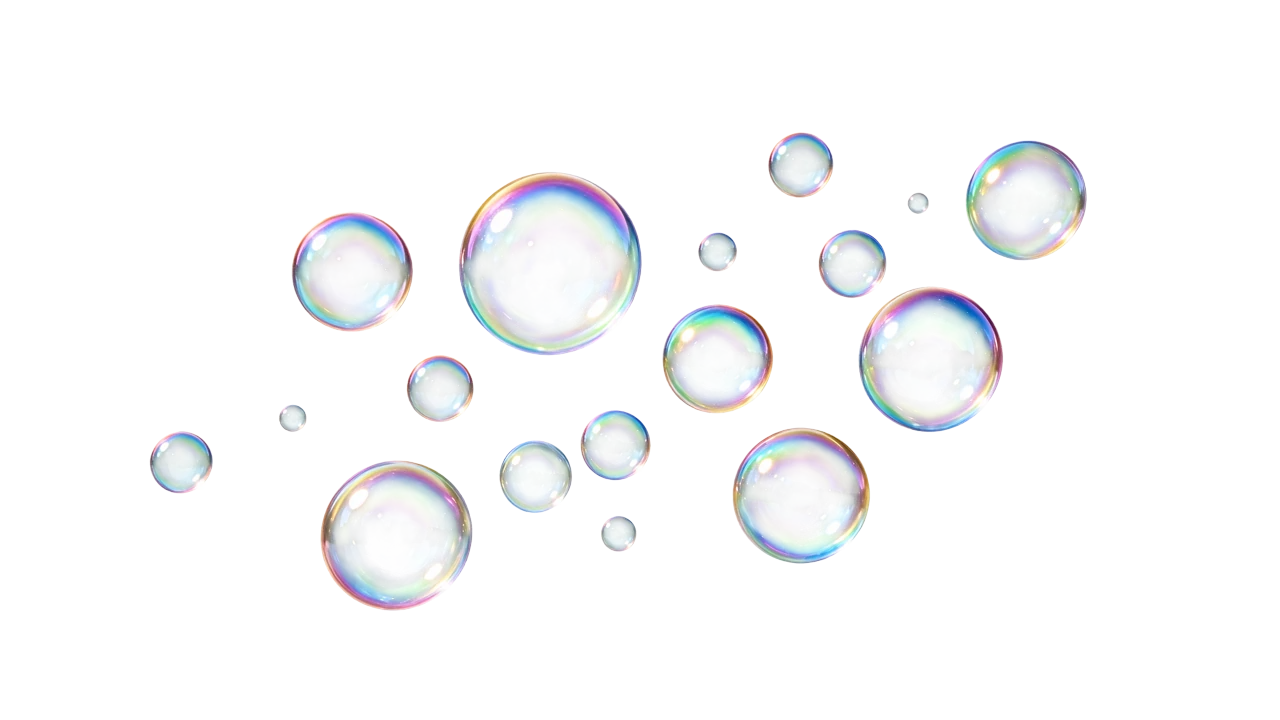
Use Seedream 5.5 to create a 16:9 1K overlay of a dozen soap bubbles of different sizes drifting from lower left to upper right. Each bubble is see-through, with thin rainbow swirls and a small white highlight. Transparent background, semi-transparent bubbles, nothing else in the frame.
A cluster of iridescent soap bubbles of different sizes on a transparent background.
Prompt 03 result generated with Seedream 5.5 in ChatCut.

Check Composite the overlay over a busy photo and check that the picture shows through each bubble. In this result the bubble interiors are semi-transparent in the alpha channel rather than painted on a backdrop, with rainbow rims and white highlights; the cluster drifts more horizontally than the requested diagonal.

4. A knitted-yarn title cutout

Use it for a short title placed over a video or presentation.

Try this promptOpen in ChatCut
Use Seedream 5.5 to create a 4:3 1K title graphic of the words 'HELLO SUMMER' on two lines, made from chunky tomato-red knitted yarn with visible stitches and fuzzy fibres. Letters front-facing and clearly separated. Transparent background, including the holes inside the letters. No other words.
HELLO SUMMER in chunky red knitted-yarn letters on two lines, on a transparent background.
Prompt 04 result generated with Seedream 5.5 in ChatCut.

Check Read both words letter by letter and check the holes inside the O and R. This result spells HELLO SUMMER on two lines in red yarn with visible knit stitches, and the counters inside the letters are transparent like the surrounding space.

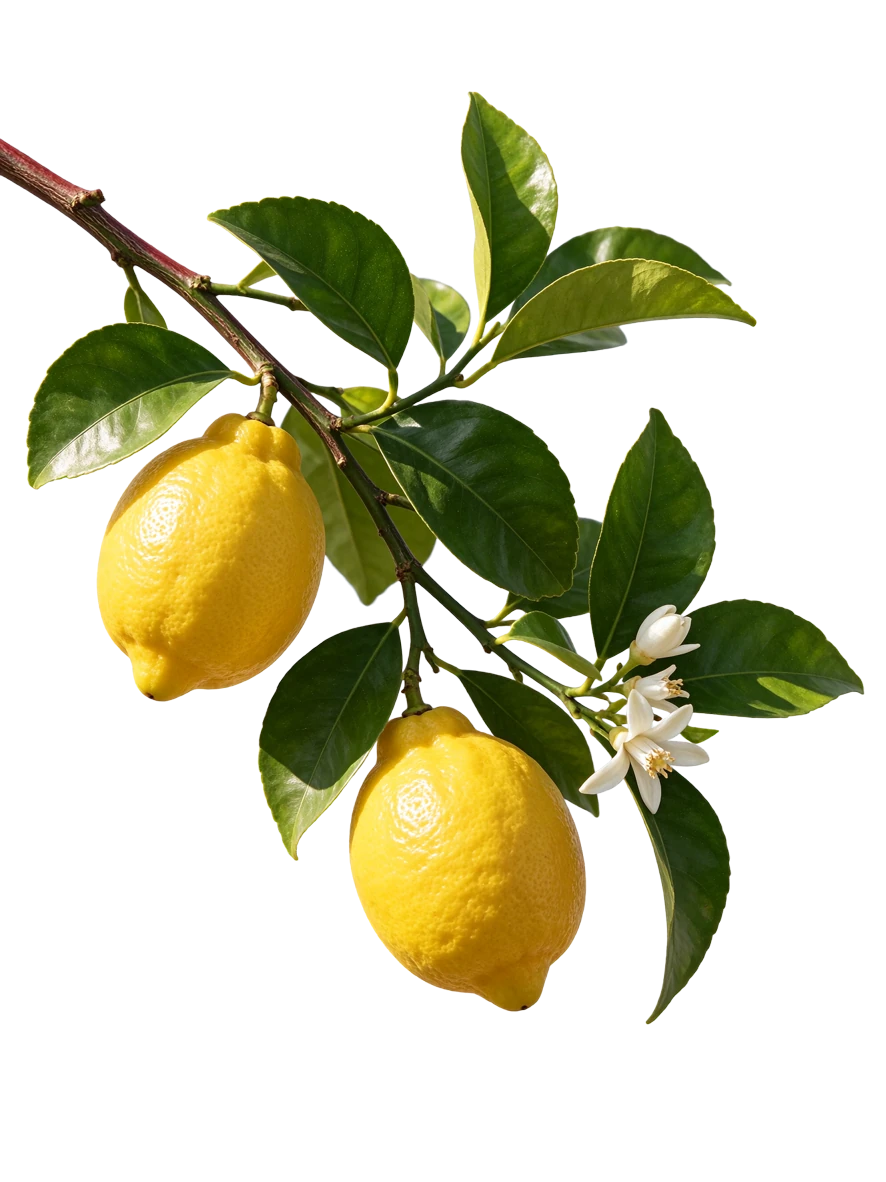
5. A lemon-branch cutout

Use it for an organic frame element with fine stems and open gaps.
Try this promptOpen in ChatCut
Use Seedream 5.5 to create a vertical 3:4 1K cutout of a lemon branch with two ripe lemons, glossy green leaves and three small white blossoms, lit by bright sun from the left. Keep the whole branch in frame with margins. Transparent background with open gaps between the leaves, no shadow, no vase.
Lemon branch with two ripe lemons, glossy leaves, and small white blossoms, cut out on a transparent background.
Prompt 05 result generated with Seedream 5.5 in ChatCut.

Check Inspect the thin stems and the gaps between leaves for missing or filled regions. This result keeps the whole branch inside the frame with two lemons and a few small white blossoms, and the spaces between the leaves are transparent; there is no cast shadow.

AI image prompts for small text, menus, and infographics

Supply every word and value, then specify where it belongs. The prices, dates, discounts, and chart values in this collection are fictional design copy you can replace with approved content.

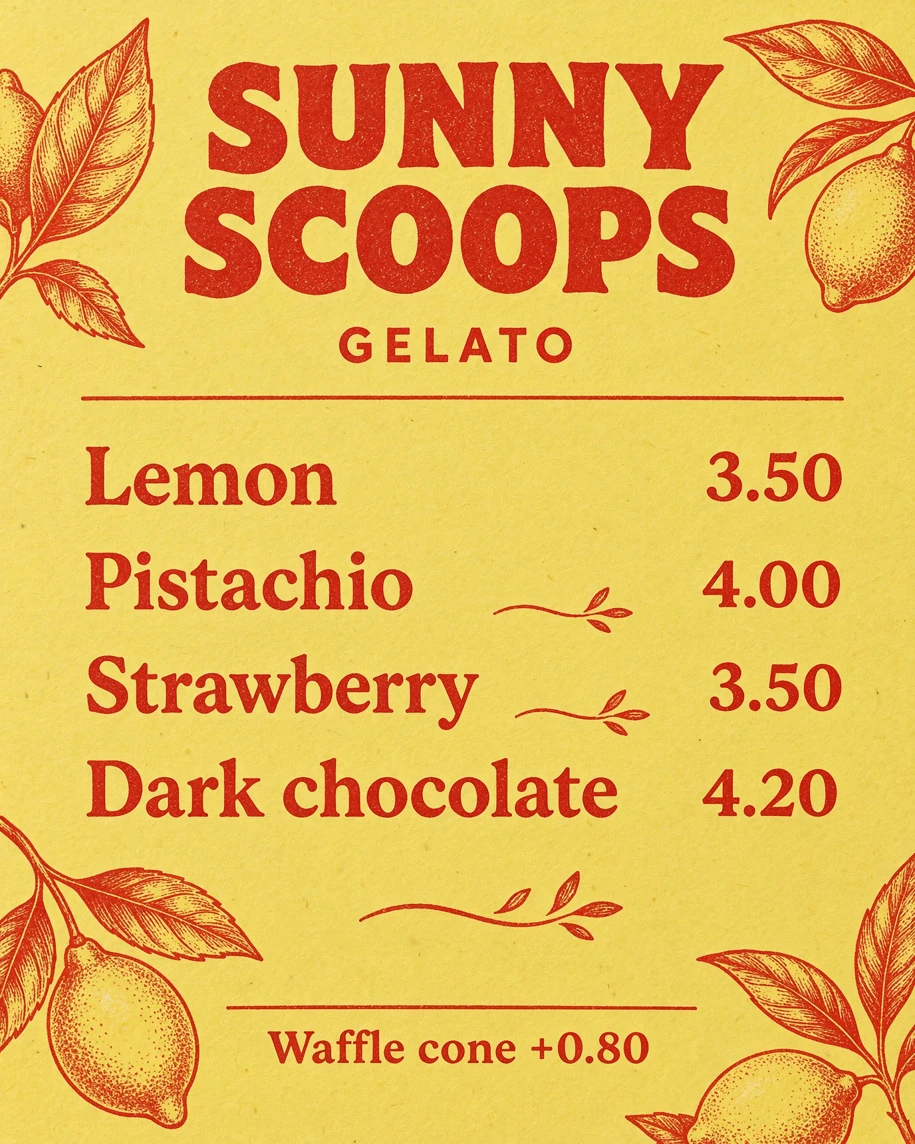
6. A gelato menu with prices

Use it for a short menu with aligned item names and prices.
Try this promptOpen in ChatCut
Use Seedream 5.5 to design a flat, front-facing 4:5 1K gelato menu printed on a lemon-yellow card in tomato-red ink, with a screen-print texture. Title 'SUNNY SCOOPS', and under it 'GELATO'. Four rows with names on the left and prices on the right: 'Lemon' 3.50, 'Pistachio' 4.00, 'Strawberry' 3.50, 'Dark chocolate' 4.20. Small footer 'Waffle cone +0.80'. No other text.
Lemon-yellow SUNNY SCOOPS gelato menu in red ink, listing four flavours with prices and a waffle-cone supplement.
Prompt 06 result generated with Seedream 5.5 in ChatCut.

Check Read every item, decimal point, and supplement line at the size you will display it. This result pairs Lemon with 3.50, Pistachio with 4.00, Strawberry with 3.50, and Dark chocolate with 4.20 and adds the Waffle cone +0.80 footer; the model also framed the card with engraved lemon branches and small sprigs that were not requested.

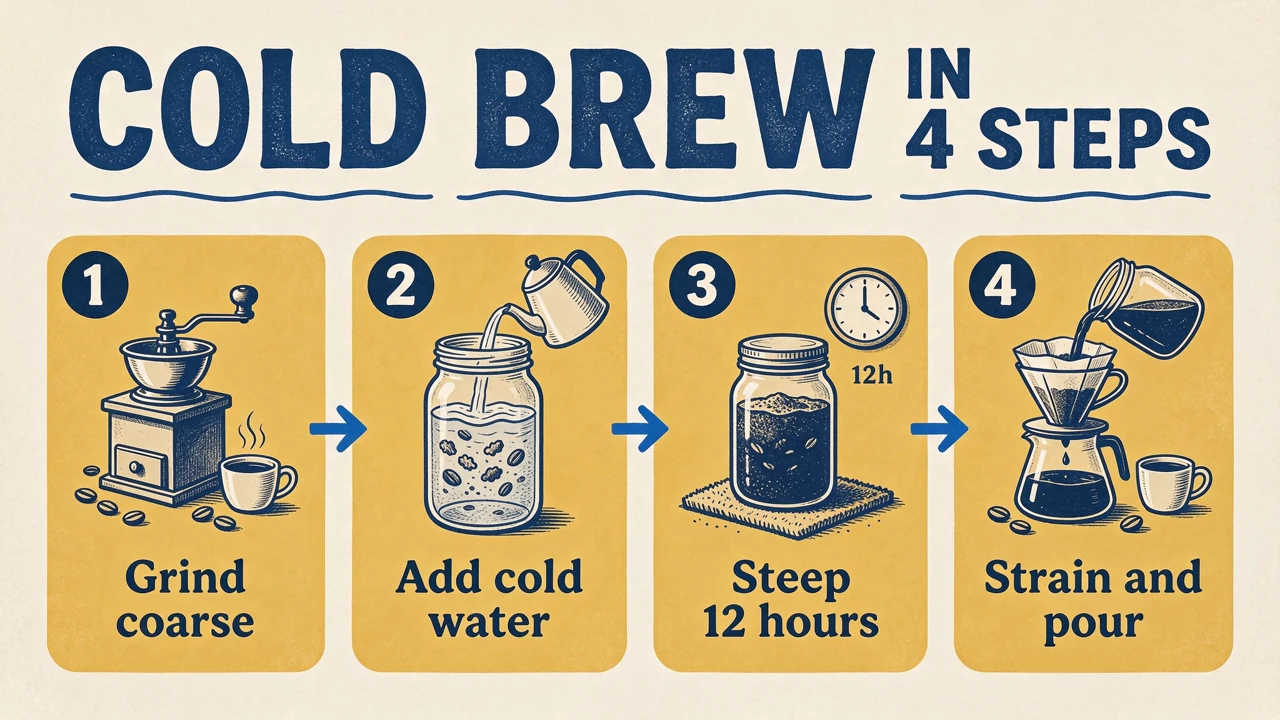
7. A four-step process infographic

Use it for a workflow with a clear left-to-right reading order.
Try this promptOpen in ChatCut
Use Seedream 5.5 to create a 16:9 1K step-by-step graphic titled 'COLD BREW IN 4 STEPS'. Four equal mustard-yellow panels from left to right, numbered 1 to 4, each with a simple cobalt line drawing and a caption: 'Grind coarse', 'Add cold water', 'Steep 12 hours', 'Strain and pour'. One arrow between neighbouring panels. Cream background. No other text.
COLD BREW IN 4 STEPS graphic with four numbered yellow panels and arrows: Grind coarse, Add cold water, Steep 12 hours, Strain and pour.
Prompt 07 result generated with Seedream 5.5 in ChatCut.

Check Match each caption to its drawing and verify the panel numbers and arrow directions. This result has four numbered panels with the supplied captions in order and three right-pointing arrows; it also adds a small 12h label on the clock in panel 3, which was not in the supplied copy.

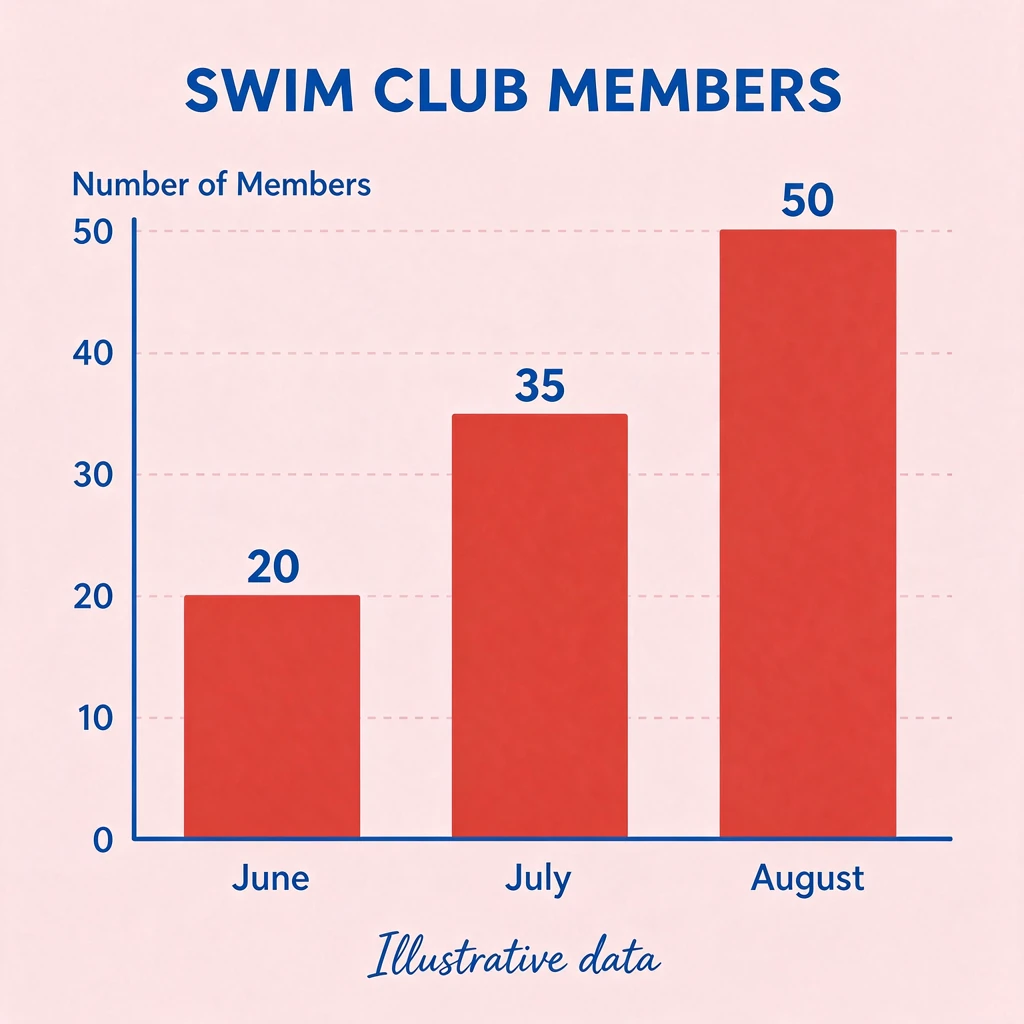
8. A chart with supplied values

Use it for a presentation graphic based on a small fixed dataset.
Try this promptOpen in ChatCut
Use Seedream 5.5 to create a square 1K bar chart titled 'SWIM CLUB MEMBERS'. Three vertical tomato-red bars labeled 'June', 'July' and 'August', with the values 20, 35 and 50 printed above them. Y-axis from 0 to 50 with a tick every 10, bar heights proportional to the values. Pale-pink background, cobalt text, footer 'Illustrative data'. Flat, no 3D.
SWIM CLUB MEMBERS bar chart with red bars for June, July, and August at 20, 35, and 50 on a zero-based axis.
Prompt 08 result generated with Seedream 5.5 in ChatCut.

Check Compare the printed values and bar heights with the supplied data and the zero-based axis. In this result the June, July, and August bars reach 20, 35, and 50 on the axis and the footer reads Illustrative data; the model added an unrequested Number of Members axis title.

9. A bilingual opening-hours card

Use it for a small information card with supplied Chinese and English copy.
Try this promptOpen in ChatCut
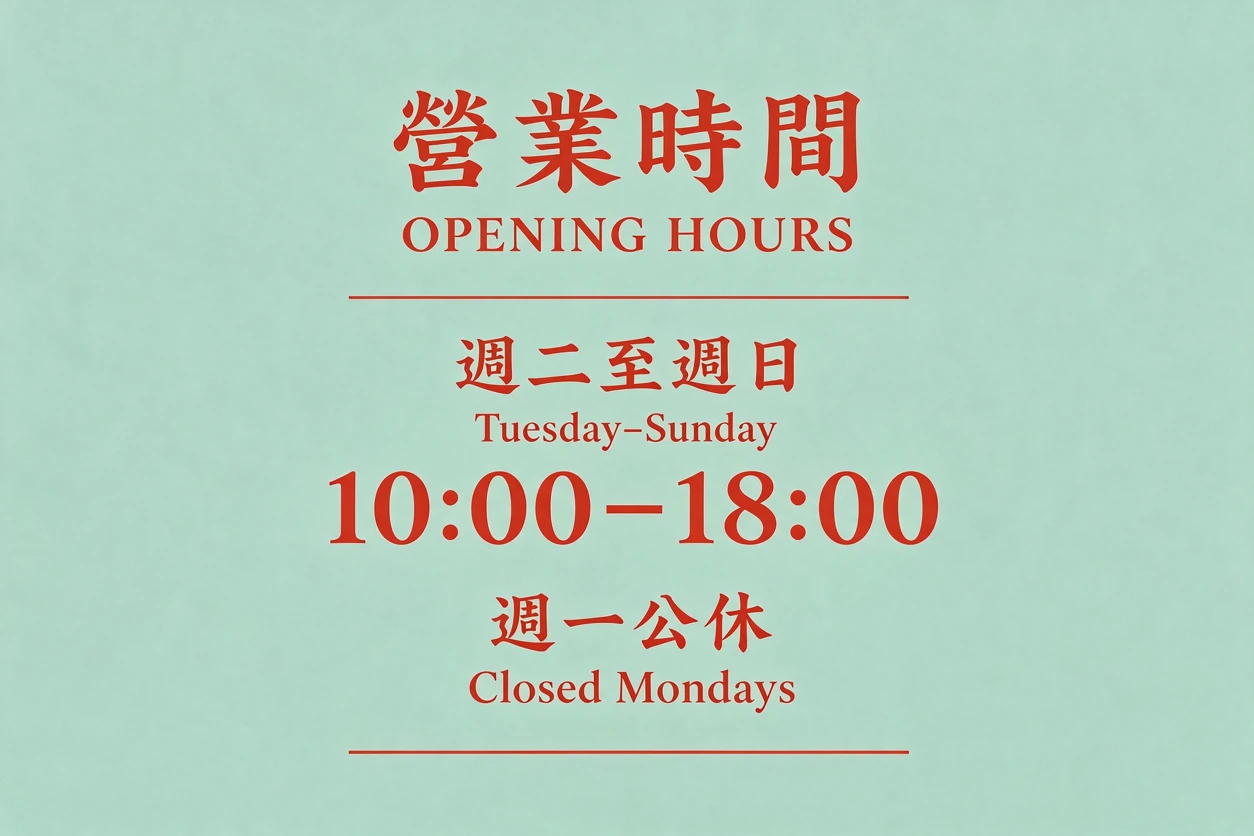
Use Seedream 5.5 to design a front-facing 3:2 1K opening-hours card for a seaside ice-cream shop, tomato-red type on a mint-green background. Top: '營業時間' with 'OPENING HOURS' under it. Middle: '週二至週日' over 'Tuesday–Sunday', then a larger '10:00–18:00'. Bottom: '週一公休' over 'Closed Mondays'. Generous spacing, no other text or pictures.
Mint-green opening-hours card with red Traditional Chinese and English lines: Tuesday to Sunday, 10:00–18:00, closed Mondays.
Prompt 09 result generated with Seedream 5.5 in ChatCut.

Check Have a fluent reader check the Chinese characters and confirm both languages give the same days and times. This result sets 營業時間, 週二至週日, and 週一公休 above their English lines, with 10:00–18:00 as the largest line and no extra text.

10. A two-column pool-day schedule

Use it for a compact timetable with unambiguous row alignment.
Try this promptOpen in ChatCut
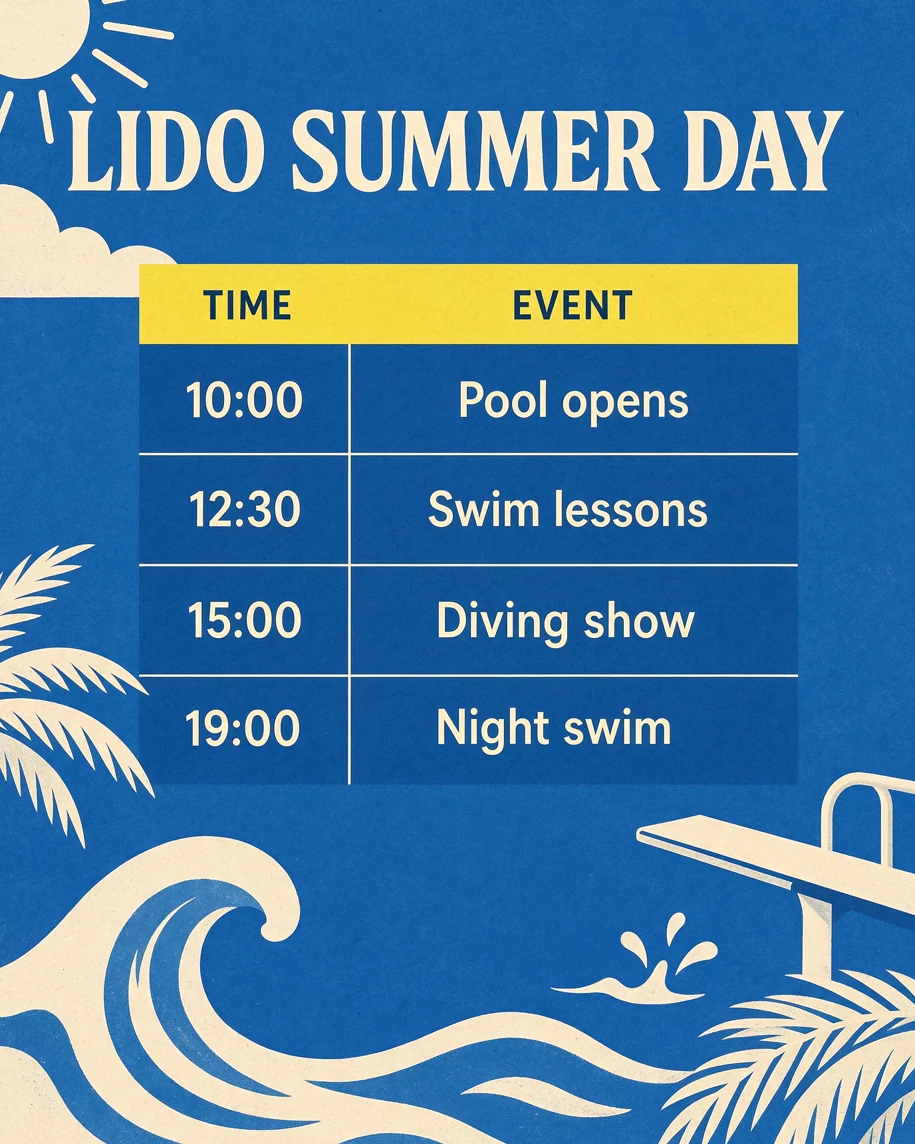
Use Seedream 5.5 to create a vertical 4:5 1K schedule poster headed 'LIDO SUMMER DAY'. A two-column table with the headers 'TIME' and 'EVENT' and four rows: '10:00' 'Pool opens', '12:30' 'Swim lessons', '15:00' 'Diving show', '19:00' 'Night swim'. Cobalt background, cream type, a lemon-yellow header row, thin rules between rows. No other text.
LIDO SUMMER DAY schedule on cobalt blue with a two-column TIME and EVENT table and four rows from Pool opens to Night swim.
Prompt 10 result generated with Seedream 5.5 in ChatCut.

Check Read across each row to confirm every time stays with its event. This result keeps 10:00 Pool opens, 12:30 Swim lessons, 15:00 Diving show, and 19:00 Night swim on separate rows under a yellow header, with a sun, waves, palms, and a diving board drawn around the table.

AI image generator prompts for posters and ads

Make the message hierarchy explicit and keep copy areas clear. Save prompt 11’s result for the two poster revisions at the end of the collection.

11. A rooftop cinema poster

Use it for an event poster that also serves as the source for prompts 29–30.
Try this promptOpen in ChatCut
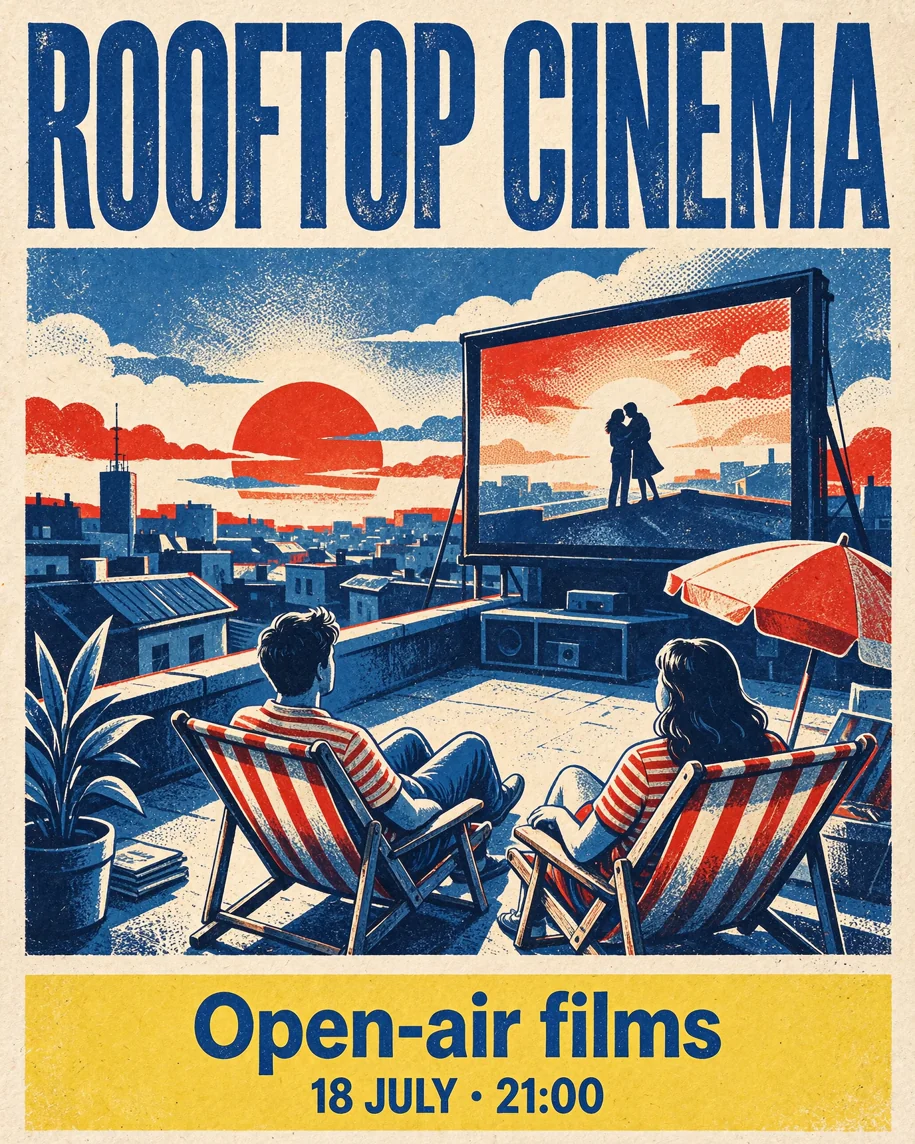
Use Seedream 5.5 to design a 4:5 1K screen-printed poster in cobalt, tomato red and cream. Headline 'ROOFTOP CINEMA' in bold condensed letters across the top. In the middle, two people in striped deck chairs on a rooftop watching a big outdoor screen at sunset. A lemon-yellow footer band at the bottom with 'Open-air films' and '18 JULY · 21:00'. Visible paper grain, slightly misregistered ink. No other text.
Screen-printed ROOFTOP CINEMA poster: two people in striped deck chairs watch an outdoor screen at sunset above a yellow footer reading Open-air films, 18 JULY · 21:00.
Prompt 11 result generated with Seedream 5.5 in ChatCut.

Check Proofread the headline and footer and inspect the figures and deck chairs before saving this as an editing source. This result reads ROOFTOP CINEMA across the top and Open-air films with 18 JULY · 21:00 in the yellow footer band, in three-colour print with visible grain.

12. A sunglasses sale graphic

Use it for a promotion with one clearly bounded offer.

Try this promptOpen in ChatCut
Use Seedream 5.5 to create a square 1K sale graphic for a fictional sunglasses shop. Hot-pink background, a hand holding up a pair of tangerine sunglasses in hard sunlight with a crisp shadow. Cobalt type: 'SUN READY' at the top, a large '30% OFF' in the middle and 'Sunglasses only · Ends Sunday' below. Keep the text clear of the hand. No logo or code.
Hot-pink sale graphic with SUN READY, 30% OFF, and Sunglasses only · Ends Sunday in blue type beside a hand holding orange sunglasses.
Prompt 12 result generated with Seedream 5.5 in ChatCut.

Check Verify the discount, product restriction, and end day together, and check that no text overlaps the hand. This second attempt reads SUN READY, 30% OFF, and Sunglasses only · Ends Sunday with the hand clear of the type; the first attempt printed an unrequested Seedream 5.5 line, so the prompt now ends with No other words.

13. A vertical water-bottle ad with copy space

Use it for a product-led advertising layout with room for a headline.
Try this promptOpen in ChatCut
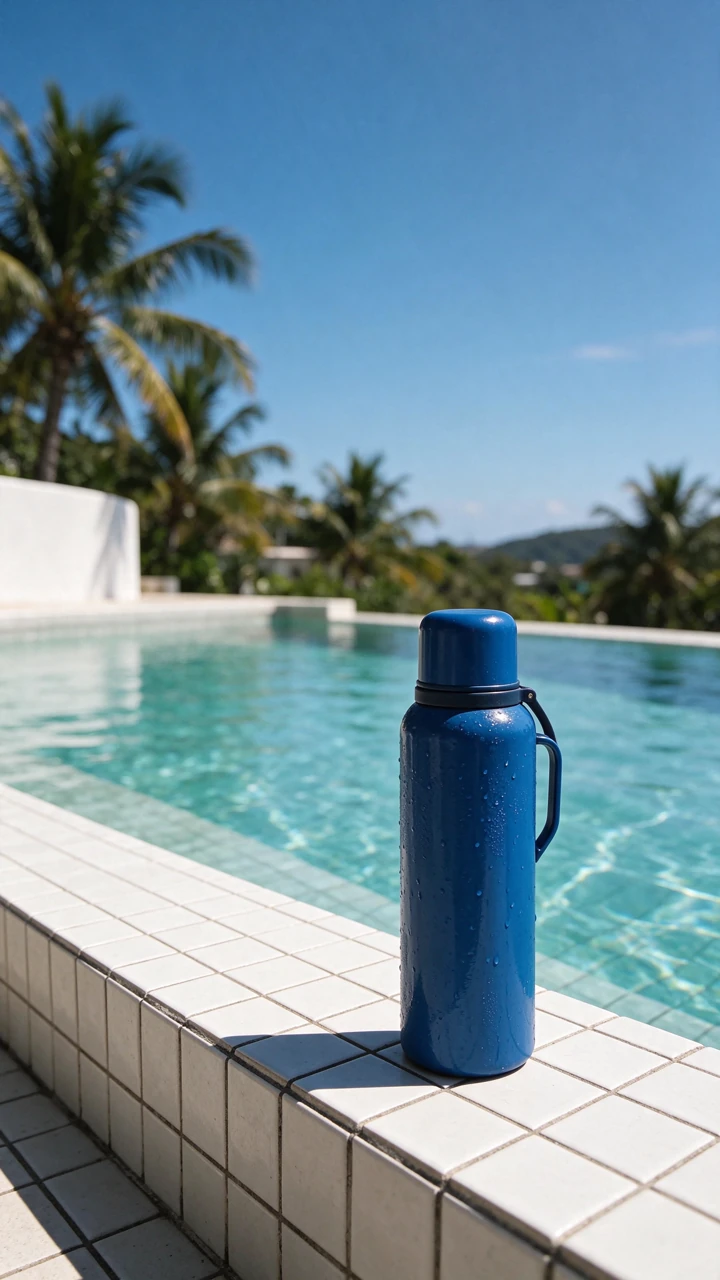
Use Seedream 5.5 to create a 9:16 1K ad still for a fictional water bottle: one cobalt-blue insulated bottle standing on the white tiled edge of a turquoise swimming pool in the lower right of the frame, with a sharp shadow and water drops on it. Keep the upper third as clear blue sky for a headline. No labels or text. Editorial photograph shot on medium-format film in hard midday sun: saturated but natural colour, crisp shadows, soft highlight roll-off, fine film grain, real skin and fabric texture. No HDR, no digital sharpening, no glossy retouched skin.
Vertical ad still of a cobalt-blue insulated bottle on a white-tiled pool edge, with clear blue sky across the top.
Prompt 13 result generated with Seedream 5.5 in ChatCut.

Check Preview your headline in the reserved space and inspect the cap, handle, and contact shadow. This result stands one unlabeled blue bottle with water drops on the tiled pool edge right of centre, with open blue sky across the upper third and palm fronds along the left edge.

14. A bilingual travel poster

Use it for a poster pairing short Japanese and English headings.
Try this promptOpen in ChatCut
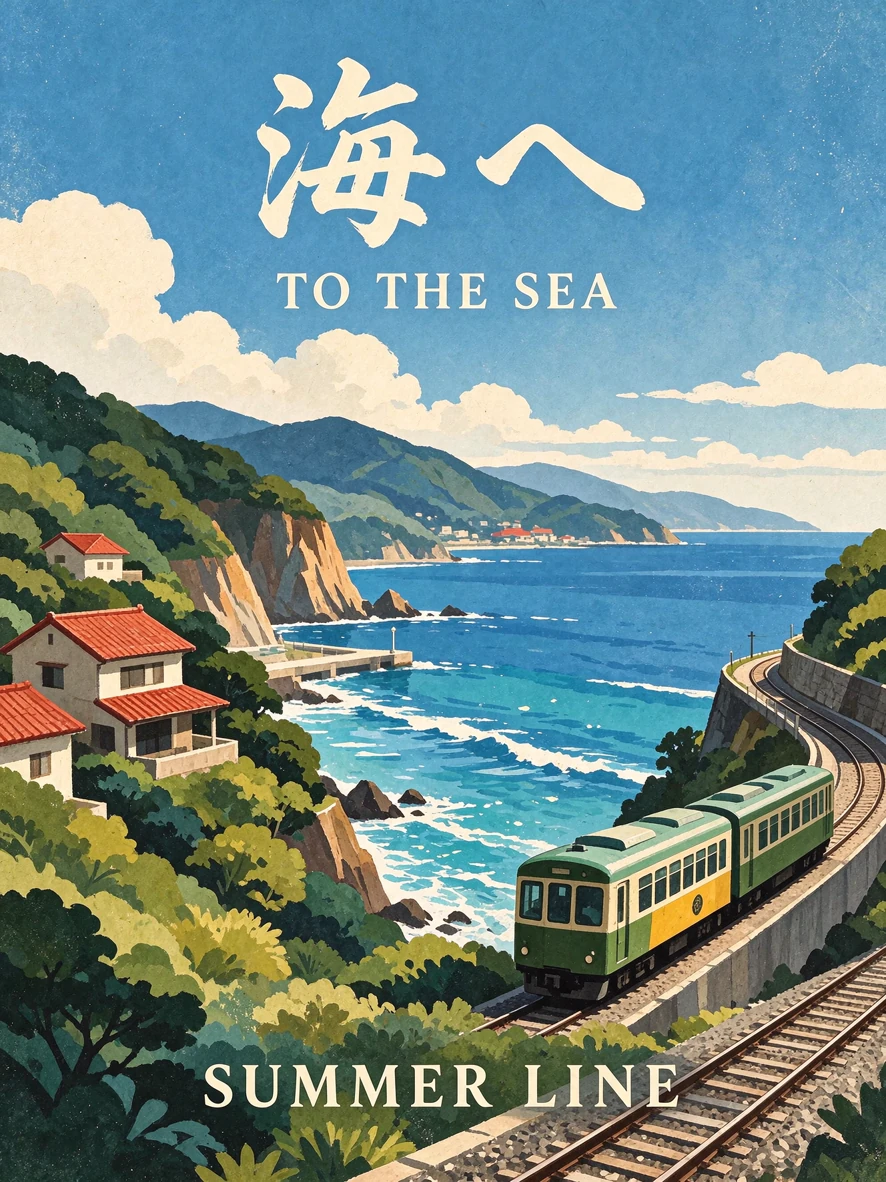
Use Seedream 5.5 to design a vertical 3:4 1K vintage travel poster in flat gouache colours. At the top, the Japanese '海へ' with 'TO THE SEA' beneath it. In the middle, a small green two-car train running along a coast road beside a bright blue sea, white clouds and red-roofed houses. At the bottom, 'SUMMER LINE'. No other text.
Gouache travel poster with the Japanese 海へ above TO THE SEA, a green two-car train on a coastal track, and SUMMER LINE at the bottom.
Prompt 14 result generated with Seedream 5.5 in ChatCut.

Check Have a fluent reader check the Japanese and verify the English title and bottom line. This result places 海へ above TO THE SEA, shows a green two-car train on a coastal line beside red-roofed houses and a blue sea, and sets SUMMER LINE at the bottom.

15. A wide reading-campaign banner

Use it for a landscape banner with copy beside a single focal object.

Try this promptOpen in ChatCut
Use Seedream 5.5 to create a 16:9 1K banner for a summer reading campaign. Right half: an open paperback lying on a yellow-and-white striped beach towel in hard noon sun, with a palm shadow across it. Left half: a flat cobalt-blue panel with the headline 'READ BY THE SEA' and the smaller line 'Your summer list'. No readable text on the book pages.
Wide banner with READ BY THE SEA and Your summer list on a blue left panel and an open paperback on a striped beach towel at the right.
Prompt 15 result generated with Seedream 5.5 in ChatCut.

Check Read both lines at the display size and inspect the book’s spine and page edges. This result keeps both lines on the blue left panel and shows the open book on the yellow-and-white towel with unreadable, blurred page text; it also adds a woman in a sunhat lying behind the book, which the prompt did not ask for.

AI image prompts for product photography

These text-only briefs describe fictional products for concept images. To photograph an existing item through generation, attach its reference and specify the shape, color, construction, and label that must be preserved.

16. A yellow radio catalog shot

Use it for a clean product concept with an easily inspected silhouette.
Try this promptOpen in ChatCut
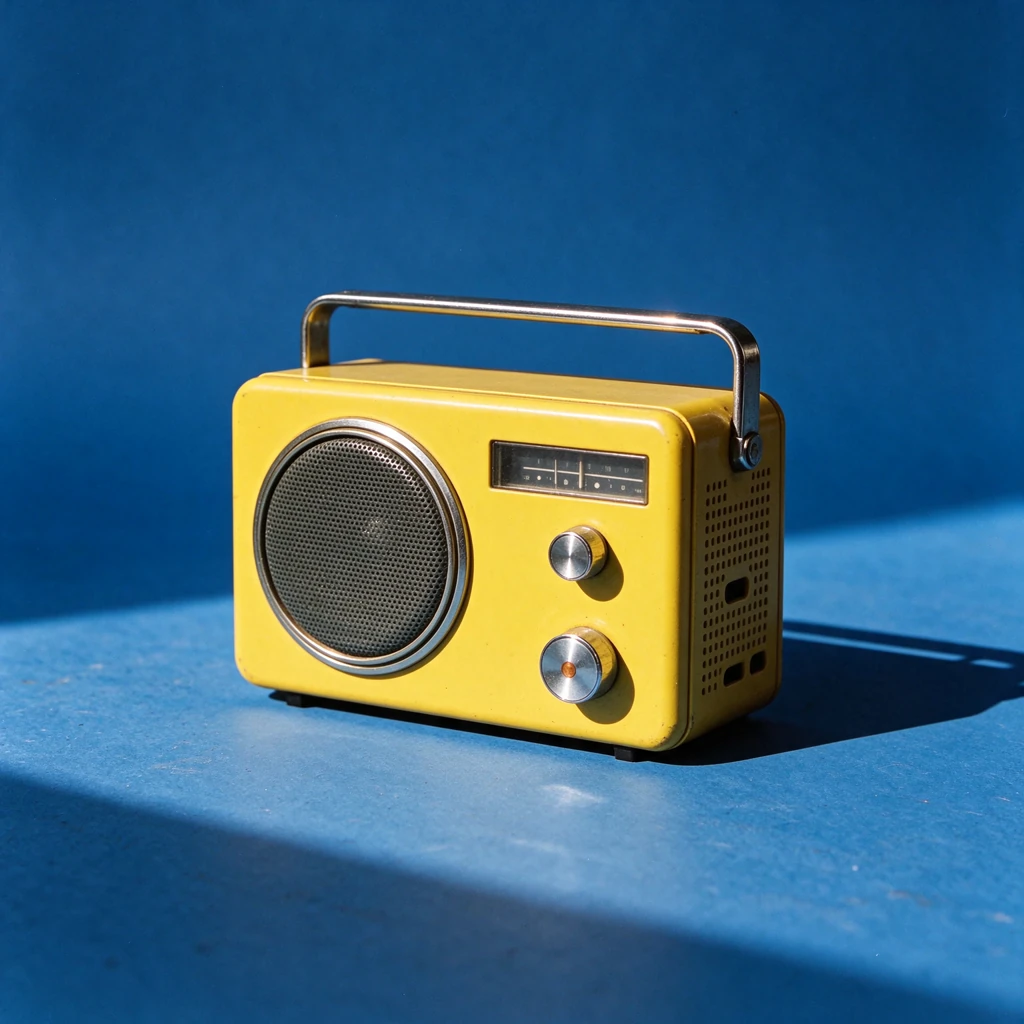
Use Seedream 5.5 to create a square 1K product photo of a fictional lemon-yellow portable radio in three-quarter view on a seamless cobalt-blue backdrop: rounded body, round speaker grille, one tuning dial and a chrome carry handle. Whole object in frame, crisp floor shadow. No logo or text. Editorial photograph shot on medium-format film in hard midday sun: saturated but natural colour, crisp shadows, soft highlight roll-off, fine film grain, real skin and fabric texture. No HDR, no digital sharpening, no glossy retouched skin.
Lemon-yellow portable radio with a round speaker grille, chrome knobs, and a chrome handle on a seamless cobalt-blue backdrop.
Prompt 16 result generated with Seedream 5.5 in ChatCut.

Check Inspect the handle mounts, grille, controls, and floor contact. This result shows the whole radio with a round grille, a tuning window, and a chrome carry handle casting a crisp shadow on the blue floor; it has two chrome knobs where the prompt asked for one tuning dial.

17. Glass and liquid in a lemonade hero shot

Use it for a transparent-material study with controlled reflections.
Try this promptOpen in ChatCut
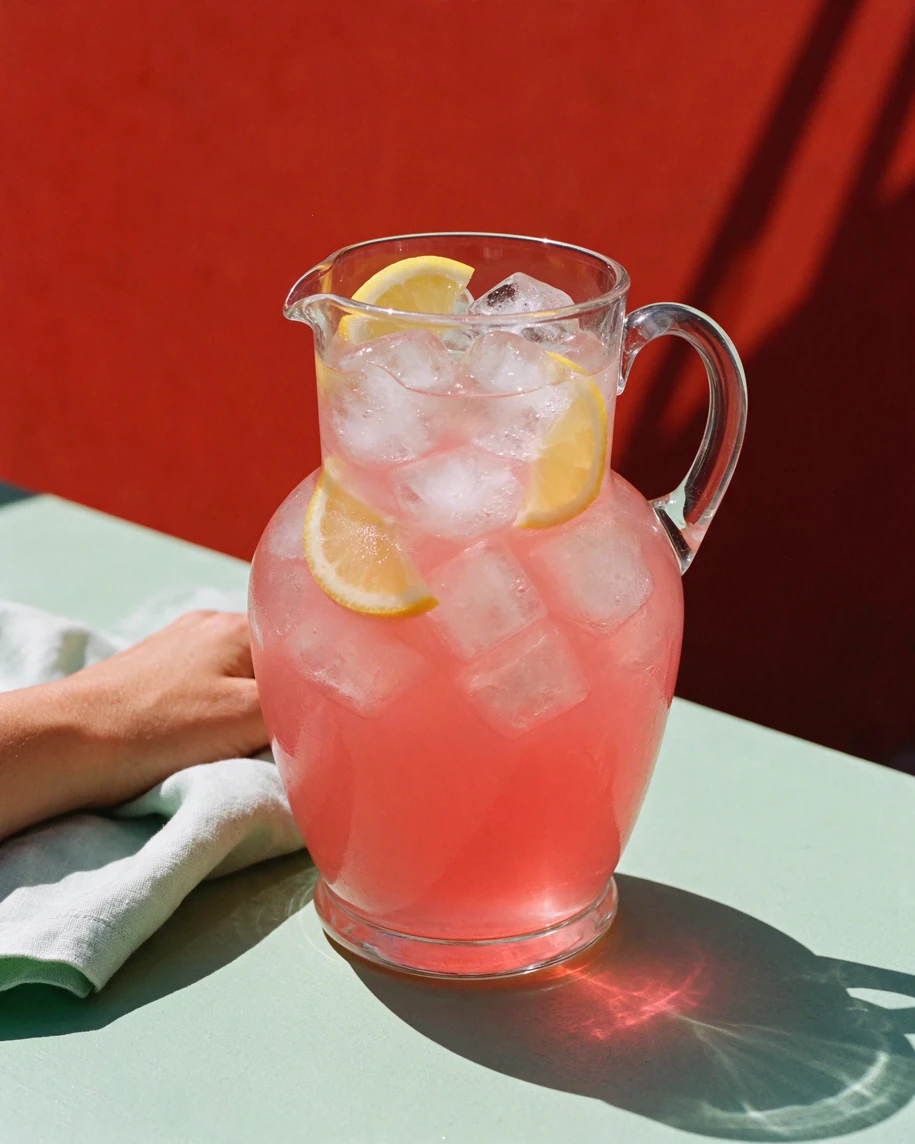
Use Seedream 5.5 to create a vertical 4:5 1K product photo of a clear glass carafe of pink lemonade with ice cubes and lemon slices on a mint-green table against a tomato-red wall. Hard sun from the left throws a glowing pink caustic shadow across the table. Condensation on the glass, a level liquid line. No labels. Editorial photograph shot on medium-format film in hard midday sun: saturated but natural colour, crisp shadows, soft highlight roll-off, fine film grain, real skin and fabric texture. No HDR, no digital sharpening, no glossy retouched skin.
Glass carafe of pink lemonade with ice and lemon slices on a mint table against a red wall, casting a pink caustic shadow.
Prompt 17 result generated with Seedream 5.5 in ChatCut.

Check Trace the carafe outline, liquid line, and ice for duplicated or floating parts. This result shows a pink carafe with ice and lemon slices throwing a bright pink caustic patch onto the mint table; an unrequested hand and towel appear at the left edge.

18. Raffia and leather stitching in close-up

Use it for a material-detail concept focused on construction.
Try this promptOpen in ChatCut
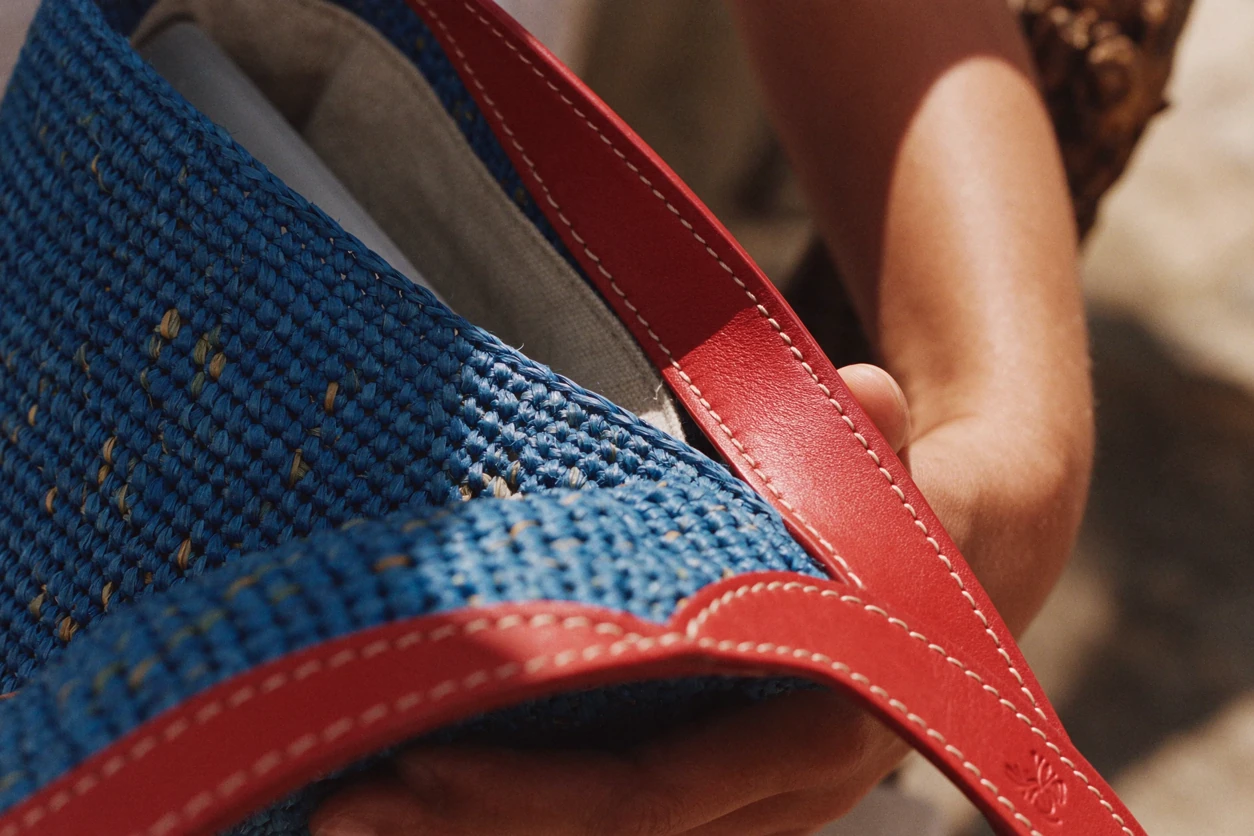
Use Seedream 5.5 to create a horizontal 3:2 1K macro photo of the corner of a fictional cobalt-blue raffia tote bag with tomato-red leather trim and cream saddle stitching. Woven raffia, leather grain and every stitch in sharp focus, hard sunlight raking from the right, shallow depth of field. No logo. Editorial photograph shot on medium-format film in hard midday sun: saturated but natural colour, crisp shadows, soft highlight roll-off, fine film grain, real skin and fabric texture. No HDR, no digital sharpening, no glossy retouched skin.
Close-up of a cobalt-blue raffia tote with red leather trim and cream stitching in hard sunlight.
Prompt 18 result generated with Seedream 5.5 in ChatCut.

Check Follow the stitch line along the trim and inspect thread spacing and the leather edge. This result shows even cream stitches along the red leather trim against the woven blue raffia, with hands holding the bag; a small embossed motif appears on the trim despite the No logo instruction.

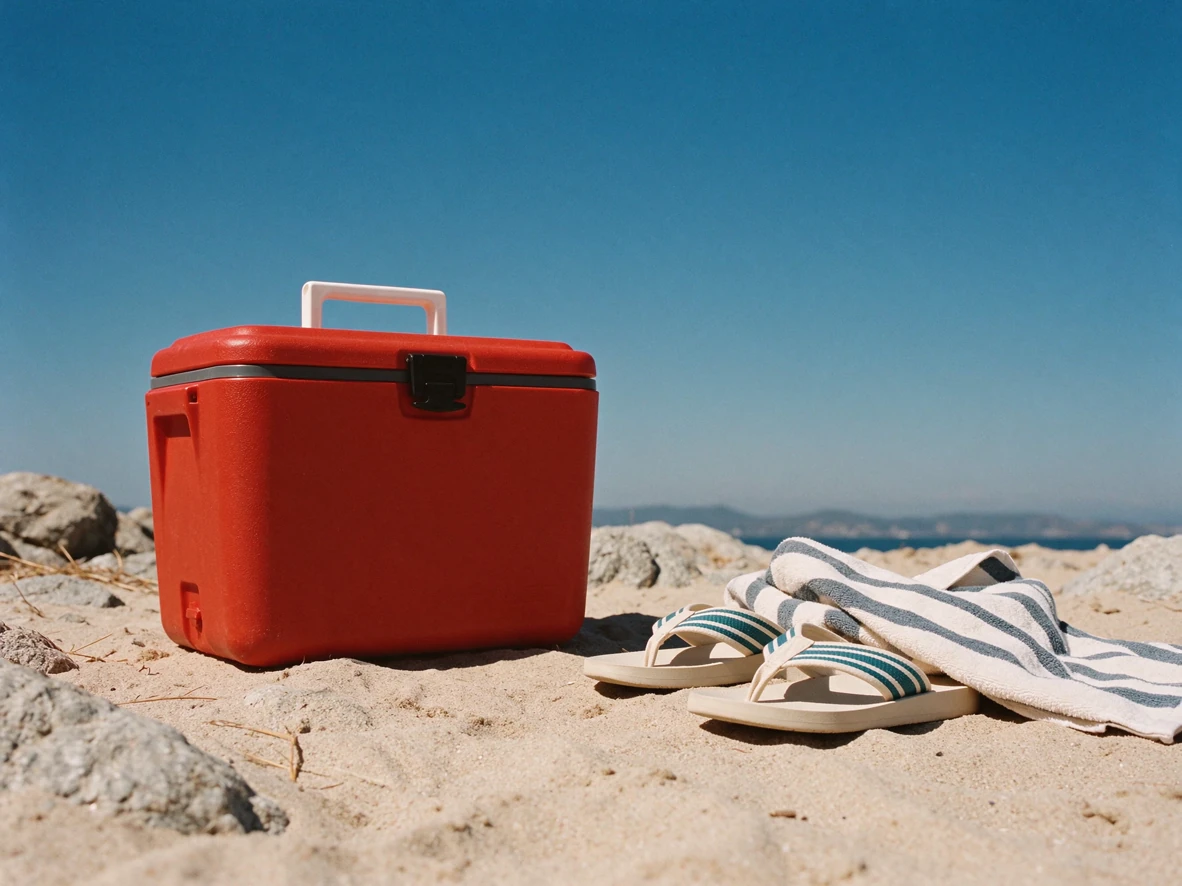
19. A cooler box in a believable beach scene

Use it for lifestyle placement with visible scale references.
Try this promptOpen in ChatCut
Use Seedream 5.5 to create a horizontal 4:3 1K lifestyle photo of a fictional tomato-red cooler box on pale sand, beside a pair of flip-flops and a folded striped towel for scale, under a cobalt sky. One white handle, a latch on the lid, crisp shadows under every object. No people, logos or text. Editorial photograph shot on medium-format film in hard midday sun: saturated but natural colour, crisp shadows, soft highlight roll-off, fine film grain, real skin and fabric texture. No HDR, no digital sharpening, no glossy retouched skin.
Red cooler box with a white handle on pale sand beside flip-flops and a striped towel under a blue sky.
Prompt 19 result generated with Seedream 5.5 in ChatCut.

Check Compare the cooler with the flip-flops and towel for scale, then inspect the handle, latch, and shadows. This result shows one white handle and a front latch on the red cooler, with flip-flops and a folded striped towel beside it and crisp shadows on the sand.

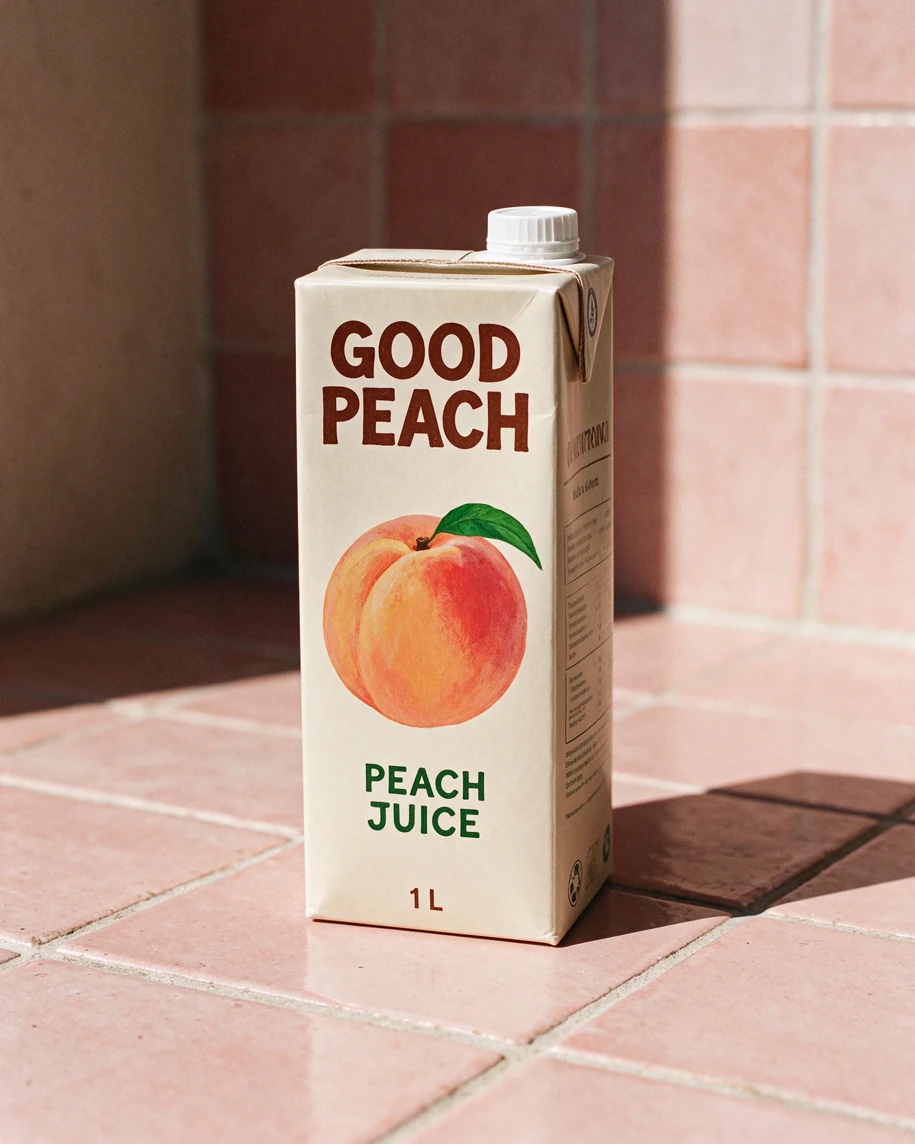
20. A juice carton with an exact label

Use it for a packaging concept with short, specified front-panel copy.
Try this promptOpen in ChatCut
Use Seedream 5.5 to create a front-facing 4:5 1K product photo of one fictional gable-top juice carton on a pale-pink tiled counter in hard sun, with a peach illustration on the front. The front reads exactly 'GOOD PEACH' at the top, 'PEACH JUICE' in the middle and '1 L' near the bottom. Sharp shadow to the right. No other text. Editorial photograph shot on medium-format film in hard midday sun: saturated but natural colour, crisp shadows, soft highlight roll-off, fine film grain, real skin and fabric texture. No HDR, no digital sharpening, no glossy retouched skin.
Gable-top GOOD PEACH carton with a peach illustration and the words PEACH JUICE and 1 L on a pink tiled counter in hard sun.
Prompt 20 result generated with Seedream 5.5 in ChatCut.

Check Read all front-panel text and inspect the carton folds, cap, and shadow. This result reads GOOD PEACH, PEACH JUICE, and 1 L on the front with a sharp shadow to the right; the side panel carries small blurred nutrition-style text that the prompt excluded.

Seedream 5.5 prompts for portraits and cinematic scenes

Describe the light source and the materials it touches. Save prompt 21’s portrait as the input for the three-round editing sequence below.

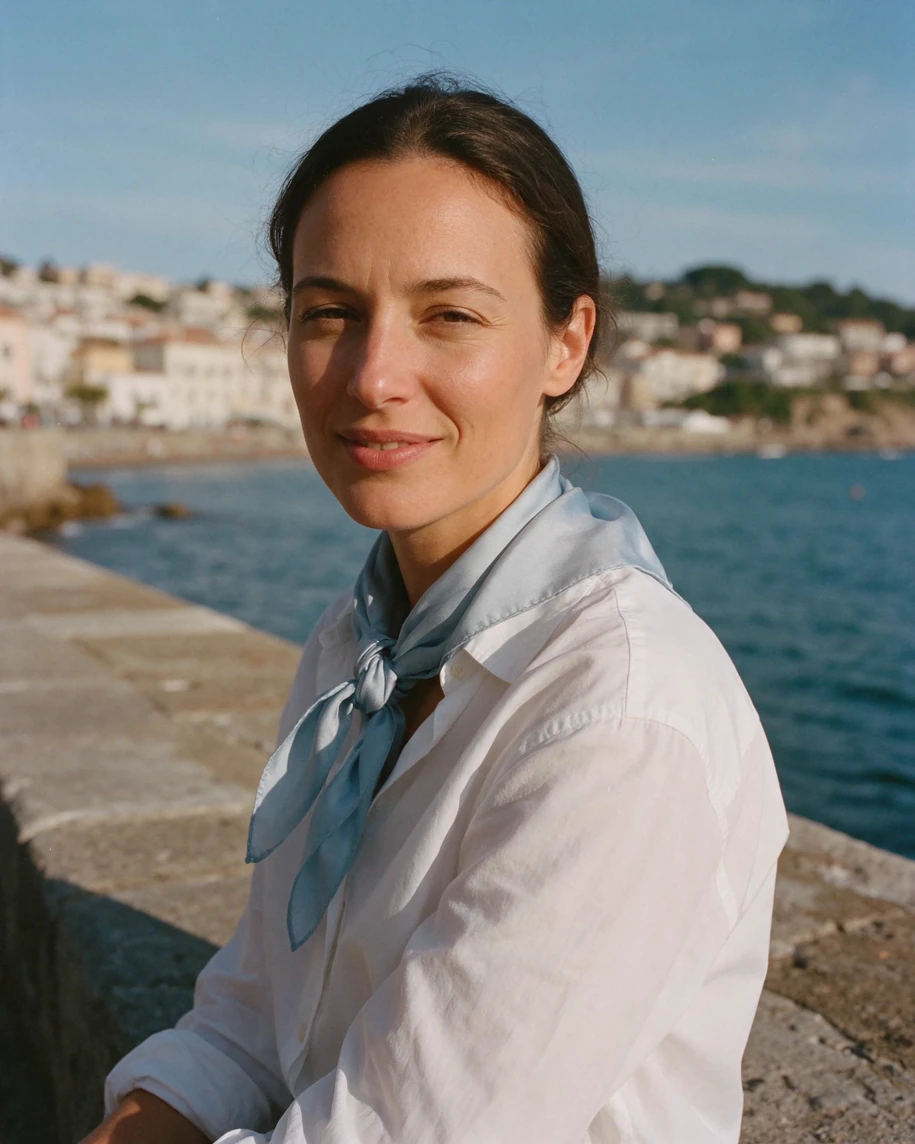
21. A seaside portrait with natural skin texture

Use it for an editorial portrait and the starting image for prompts 26–28.
Try this promptOpen in ChatCut
Use Seedream 5.5 to create a vertical 4:5 1K waist-up portrait of a woman in her early thirties sitting on a low sea wall in a seaside town, in a white cotton shirt with a pale-blue silk scarf knotted loosely at her neck. She squints a little in the sun with a relaxed half smile, the sea behind her. Candid, unposed photograph shot on 35mm film, Kodak Portra 400: natural colours with slightly muted saturation, gentle halation around bright highlights, visible fine film grain, soft lens, slightly lifted blacks. No HDR, no digital sharpening, no glossy retouched skin.
Film-style portrait of a woman on a sea wall in a white shirt and pale-blue silk scarf, with the town and sea behind her.
Prompt 21 result generated with Seedream 5.5 in ChatCut.

Check Inspect the face, hands, and scarf knot before saving the portrait as the editing source. This result shows natural skin texture and slight squint lines in warm sun, a loosely knotted pale-blue scarf, and the town and sea softly out of focus behind her.

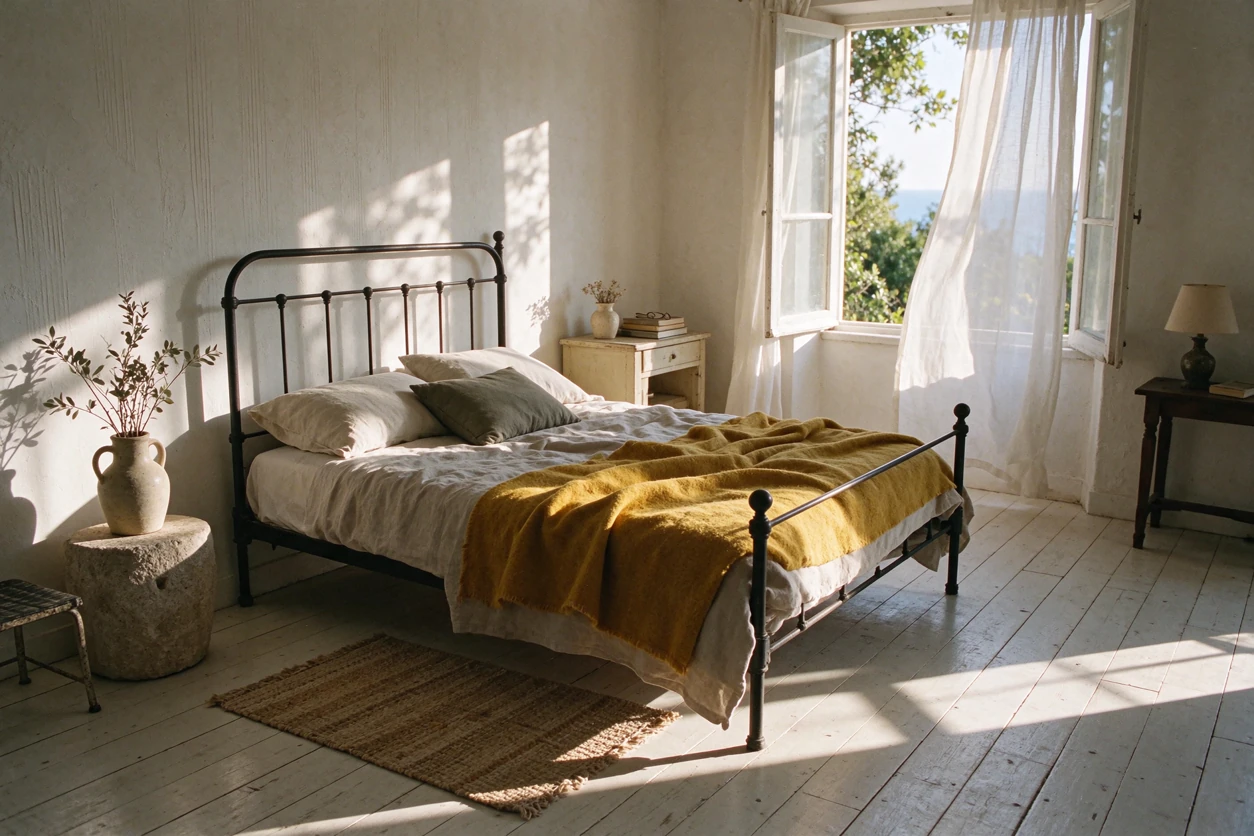
22. A beach-house bedroom with mixed materials

Use it for an interior still built around wood, wool, and metal.
Try this promptOpen in ChatCut
Use Seedream 5.5 to create a horizontal 3:2 1K photo of an empty beach-house bedroom in the morning: whitewashed wooden floorboards, a black iron bed with a rumpled mustard-yellow wool blanket, an open window with a white curtain lifting in the breeze, and patches of sun on the floor. Candid, unposed photograph shot on 35mm film, Kodak Portra 400: natural colours with slightly muted saturation, gentle halation around bright highlights, visible fine film grain, soft lens, slightly lifted blacks. No HDR, no digital sharpening, no glossy retouched skin.
Morning beach-house bedroom with a black iron bed, a mustard wool blanket, whitewashed floorboards, and sun through an open window.
Prompt 22 result generated with Seedream 5.5 in ChatCut.

Check Trace the shadows back to the window and inspect the bed frame, blanket folds, and floorboards. This result shows the black iron bed, a rumpled mustard blanket, and whitewashed boards, with patches of sun falling from the open window on the right.

23. Wet footprints on a dry pool deck

Use it for an atmospheric still with distinct wet and dry surfaces.
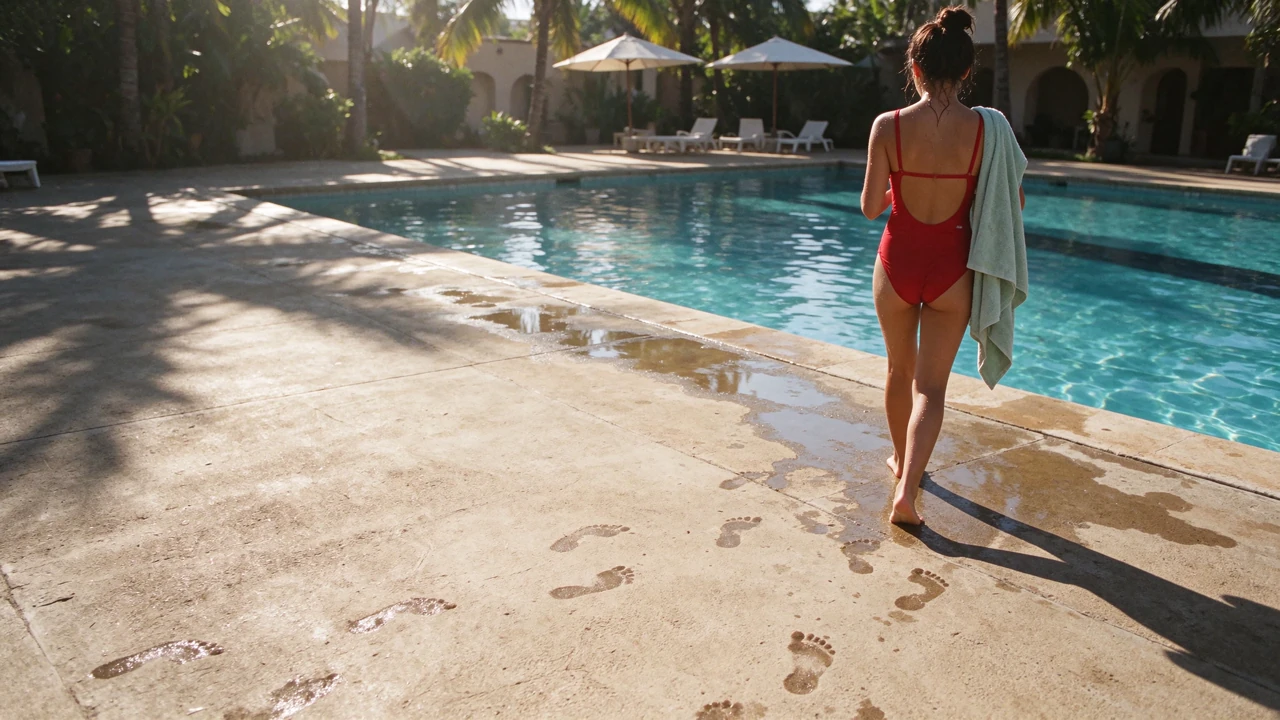
Try this promptOpen in ChatCut
Use Seedream 5.5 to create a 16:9 1K photo of wet footprints crossing a sun-baked pale concrete pool deck toward a turquoise pool. A girl in a red swimsuit walks away near the edge of the frame, still dripping. Puddles by the pool edge, dry concrete everywhere else. Candid, unposed photograph shot on 35mm film, Kodak Portra 400: natural colours with slightly muted saturation, gentle halation around bright highlights, visible fine film grain, soft lens, slightly lifted blacks. No HDR, no digital sharpening, no glossy retouched skin.
Wet footprints crossing a dry concrete pool deck toward a turquoise pool, with a girl in a red swimsuit walking away.
Prompt 23 result generated with Seedream 5.5 in ChatCut.

Check Compare the wet footprints and puddles with the dry concrete and check the figure’s anatomy. This result shows a trail of wet footprints and a wet strip along the pool edge, with the rest of the deck dry, and the girl in a red swimsuit carrying a towel.

24. A flower seller composed for image-to-video

Use it for a first-frame concept with readable action and a clear background aisle.
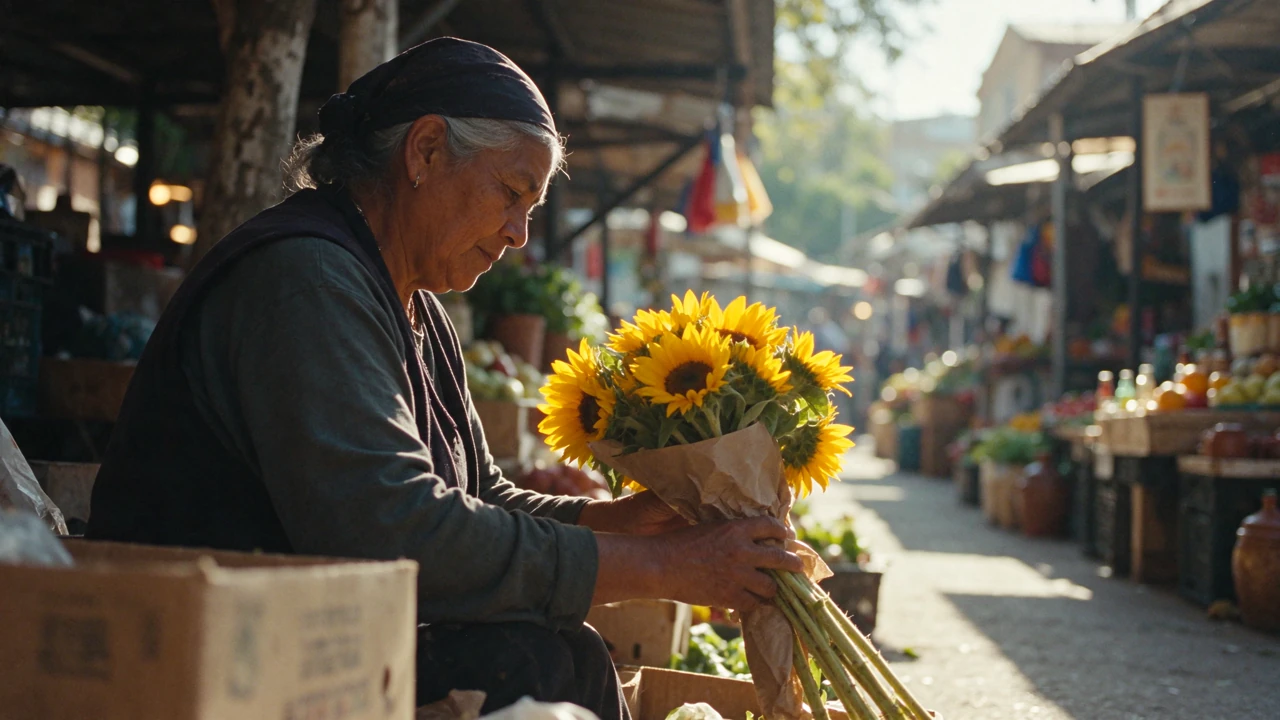
Try this promptOpen in ChatCut
Use Seedream 5.5 to create a 16:9 1K still of a flower seller at a sunny outdoor market wrapping sunflowers in brown paper, shot at waist height, the seller on the left third and an open aisle of stalls receding on the right. Both hands visible on the bouquet. No readable signs. Candid, unposed photograph shot on 35mm film, Kodak Portra 400: natural colours with slightly muted saturation, gentle halation around bright highlights, visible fine film grain, soft lens, slightly lifted blacks. No HDR, no digital sharpening, no glossy retouched skin.
Flower seller on the left wrapping sunflowers in brown paper at a sunlit market, with an aisle of stalls receding on the right.
Prompt 24 result generated with Seedream 5.5 in ChatCut.

Check Inspect the hands, paper, and open aisle before using this still as a video’s first frame. This result places the seller on the left wrapping sunflowers in brown paper, with both hands on the stems and paper, and a sunlit aisle of stalls recedes on the right; the few background signs are too blurred to read.

25. A paper-cut seaside town

Use it for a tactile illustration with a clear material vocabulary.
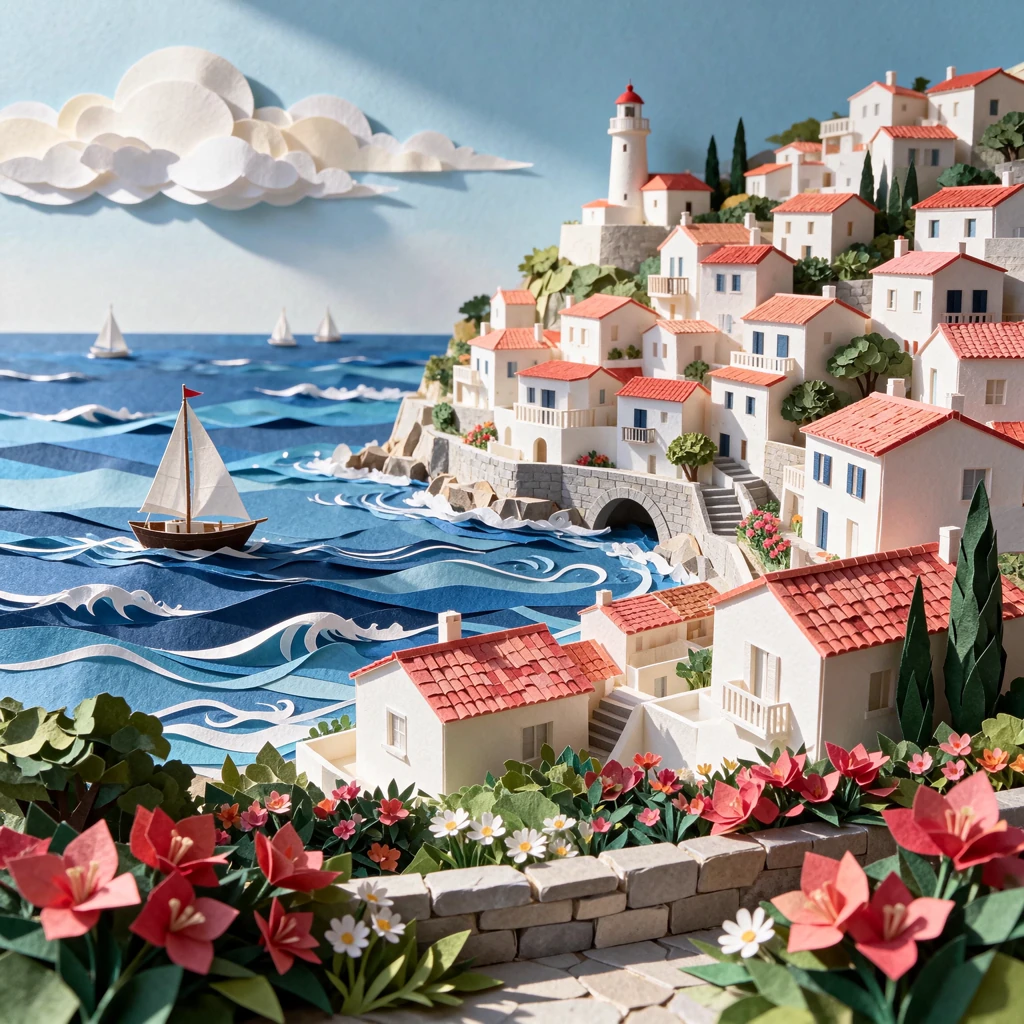
Try this promptOpen in ChatCut
Use Seedream 5.5 to create a square 1K photo of a layered paper-cut diorama of a seaside town: white houses with coral roofs, a lighthouse, a little sailboat on a rippled blue paper sea and cut-paper clouds. Raking sunlight from the upper left shows every cut edge and the shadows between the layers. No text.
Layered paper-cut diorama of a seaside town with coral roofs, a lighthouse, a sailboat on paper waves, and paper clouds.
Prompt 25 result generated with Seedream 5.5 in ChatCut.

Check Inspect the cut edges, layer shadows, and how the parts sit on each other. This result builds the town from layered white paper with coral roofs, a lighthouse, a sailboat on cut-paper waves, and paper clouds, and adds a foreground of paper flowers that the prompt did not ask for.

AI image editing prompts for multi-round revisions

Run each round separately and feed the accepted output into the next round. For the portrait, follow 21 → 26 → 27 → 28. For the poster, follow 11 → 29 → 30. Keep the original alongside every result so you can inspect changes outside the requested area.

26. Portrait round 1 — recolor the scarf

Use it to change the scarf on the portrait from prompt 21 while retaining its folds.
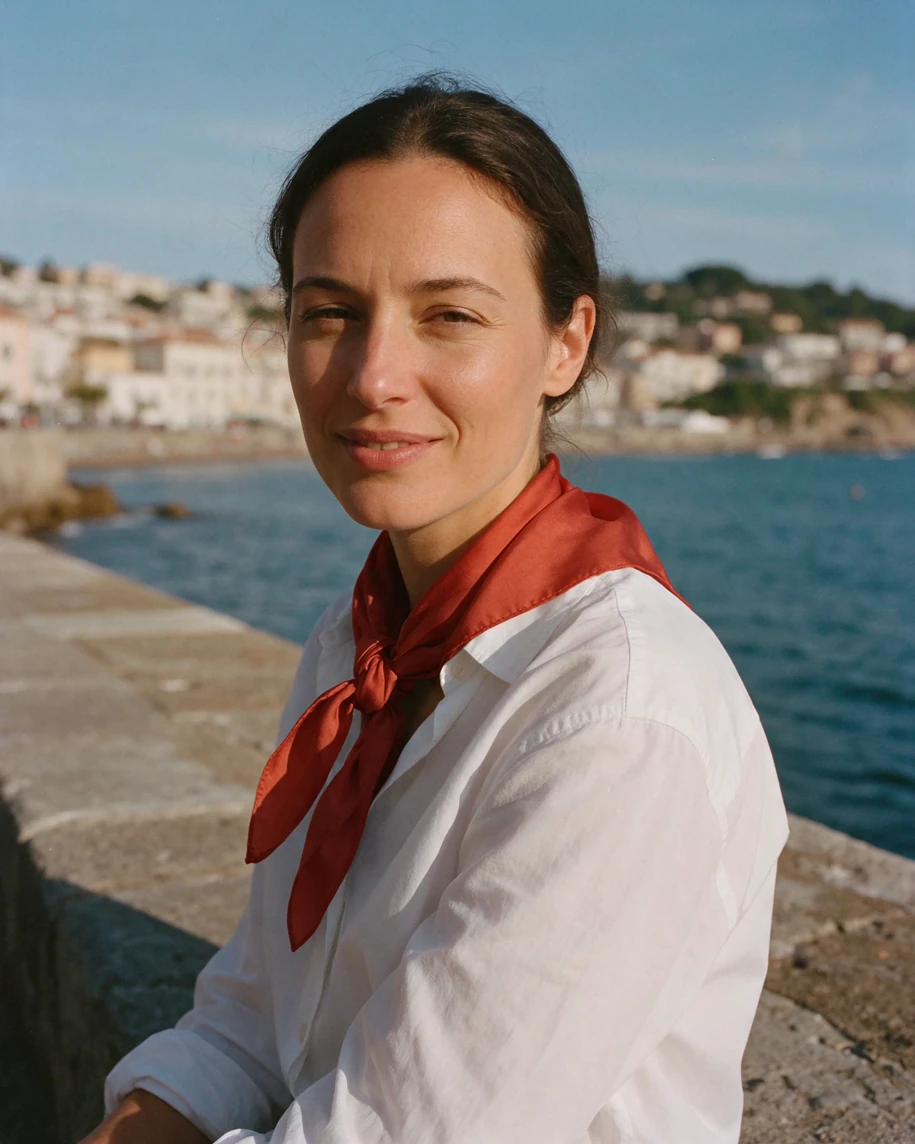
Try this promptOpen in ChatCut
Use Seedream 5.5 to edit the attached portrait from prompt 21. Change only the pale-blue scarf to tomato red, keeping its knot, folds and silk sheen. Keep her face, hair, expression, shirt, the sea wall, background, framing and light the same.
The sea-wall portrait after round 1, with the pale-blue scarf changed to tomato red and everything else unchanged.
Prompt 26 result: Seedream 5.5 edit of the prompt 21 portrait in ChatCut.

Check Compare the face, framing, and knot with prompt 21, then check the shirt and background. In this result only the scarf changes, from pale blue to tomato red with the same knot and folds; a pixel comparison with the source shows about 4% of the frame changed, all of it on the scarf.

27. Portrait round 2 — add a small brooch

Use it to add a restrained accessory to the accepted result from prompt 26.
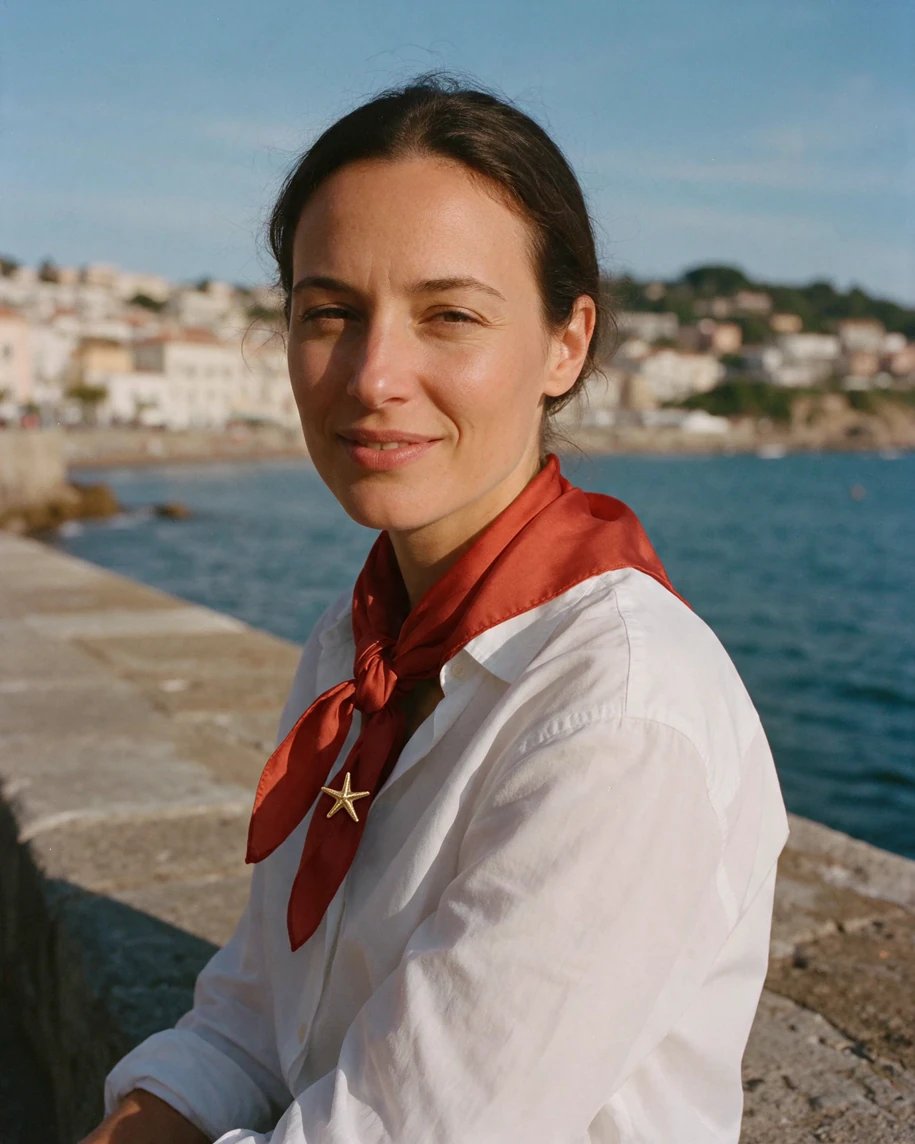
Try this promptOpen in ChatCut
Use Seedream 5.5 to edit the attached result from prompt 26. Add one small gold starfish brooch pinned to the red scarf just below the knot. Keep everything else the same: the scarf colour and folds, her face, hair, expression, shirt, background and light.
The sea-wall portrait after round 2, with a small gold starfish brooch pinned below the red scarf's knot.
Prompt 27 result: Seedream 5.5 edit of the prompt 26 result in ChatCut.

Check Inspect the brooch placement and shading, then compare the face and scarf with the previous round. This result adds a small gold starfish just below the knot; the red scarf, face, and framing match round 1, with about 0.1% of the pixels changed.

28. Portrait round 3 — replace only the brooch

Use it to replace the accessory in prompt 27 while carrying the earlier color edit forward.
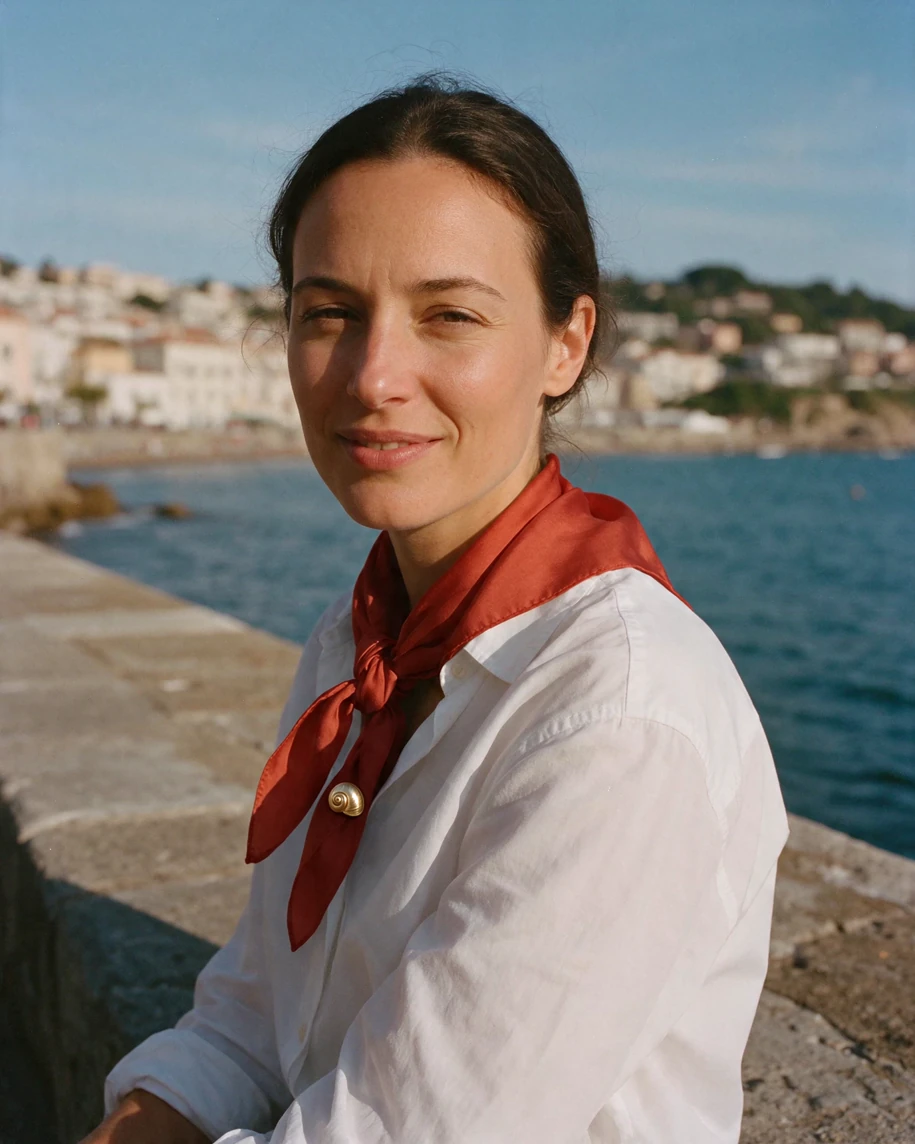
Try this promptOpen in ChatCut
Use Seedream 5.5 to edit the attached result from prompt 27. Replace only the gold starfish brooch with a small gold seashell brooch in the same spot and at the same size. Keep the red scarf, her face, expression, clothes, background and light unchanged.
The sea-wall portrait after round 3, with the starfish brooch replaced by a small gold spiral seashell in the same spot.
Prompt 28 result: Seedream 5.5 edit of the prompt 27 result in ChatCut.

Check Compare all four portrait versions for identity drift and check that the red scarf and framing survive the replacement. In this result a small gold spiral seashell sits where the starfish was, at about the same size; the scarf, face, and framing match the earlier rounds, and under 0.1% of the pixels changed.

29. Poster round 1 — correct one date

Use it to update the date on the pottery poster from prompt 11.
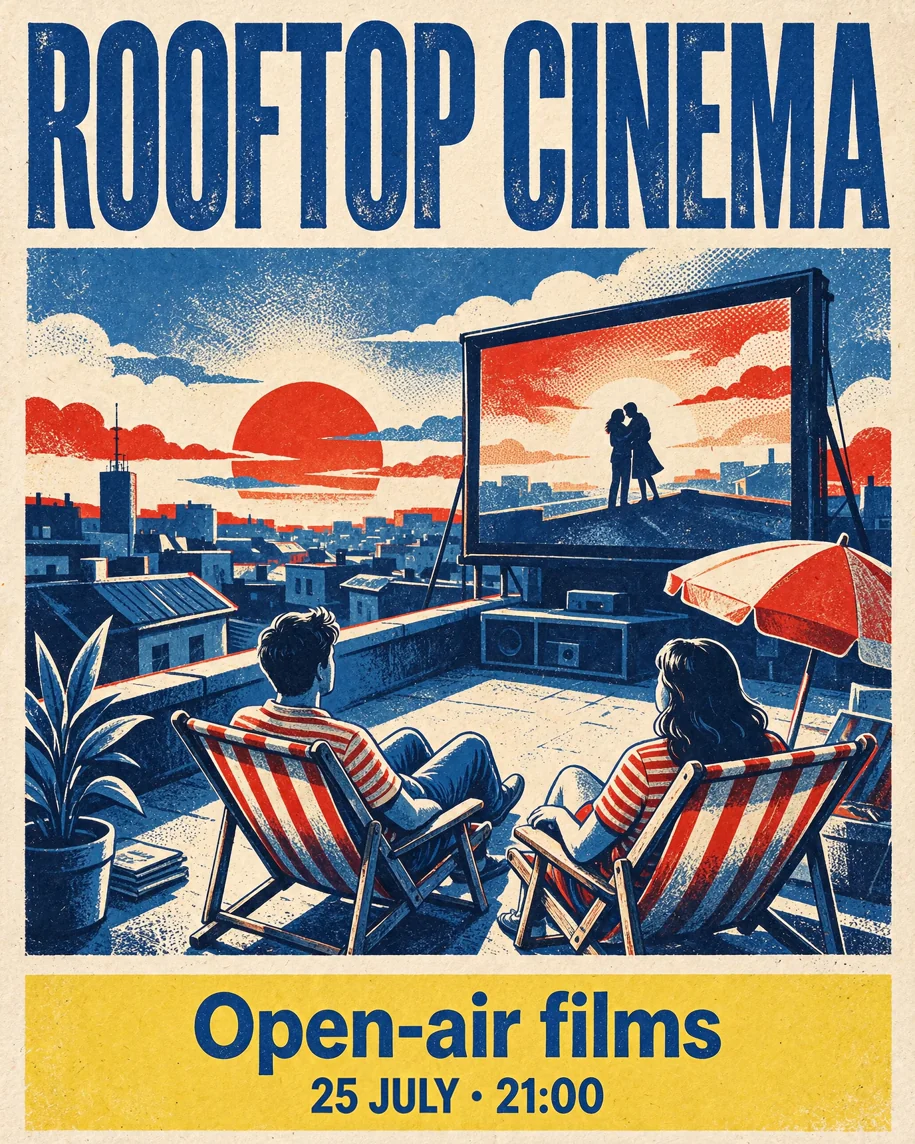
Try this promptOpen in ChatCut
Use Seedream 5.5 to edit the attached poster from prompt 11. Change only '18 JULY' to '25 JULY' in the footer, matching the font, size and colour. Keep '21:00', 'Open-air films', the headline 'ROOFTOP CINEMA', the illustration, colours and layout unchanged.
Rooftop cinema poster after round 1, with the footer date changed to 25 JULY and the rest of the poster unchanged.
Prompt 29 result: Seedream 5.5 edit of the prompt 11 poster in ChatCut.

Check Proofread the whole poster against prompt 11, including the retained time, footer label, and headline. In this result the footer reads 25 JULY · 21:00, and the only pixels that changed are in the date itself.

Use it to change the footer on the accepted result from prompt 29 while retaining the corrected date.
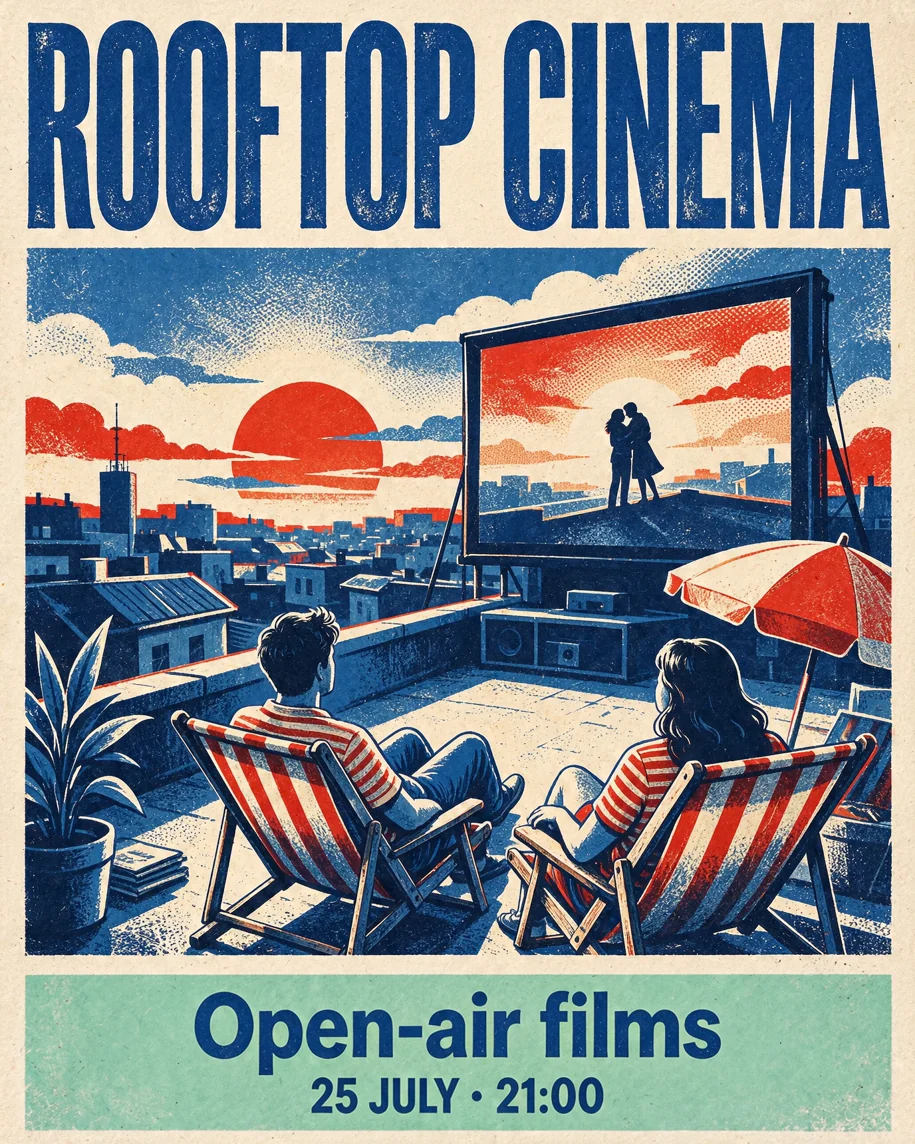
Try this promptOpen in ChatCut
Use Seedream 5.5 to edit the attached poster from prompt 29. Change only the lemon-yellow footer band to mint green. Keep the footer text 'Open-air films' and '25 JULY · 21:00', the headline, the illustration, the print texture and every position unchanged.
Rooftop cinema poster after round 2, with the footer band changed from yellow to mint green and the corrected 25 JULY date kept.
Prompt 30 result: Seedream 5.5 edit of the prompt 29 result in ChatCut.

Check Compare both edits with the original for footer boundaries, exact copy, and drift in the illustration. In this result the footer band turns mint green and still reads Open-air films and 25 JULY · 21:00; the headline and illustration are unchanged, and the changed pixels sit inside the footer band.

Fix an AI image prompt after a weak result

What needs attentionWhat to change next
An opaque rectangle surrounds a cutoutCheck the export’s alpha channel and transparent-output setting, then inspect the edges on two backgrounds.
Small lettering is garbledShorten the copy, give the affected line more space, and repeat its exact wording.
A chart’s labels look correct but its geometry is wrongCompare bar heights with the supplied values and correct the chart before using it.
A product detail drifts from a real itemAttach a clearer reference and name the exact construction detail to preserve.
A later edit changes the face or previous revisionReturn to the last accepted input and narrow the next request to one local change.
The scene looks overly glossySpecify one light source and the actual surface texture, such as matte glaze or worn linen.

Put exclusions directly into the main prompt. Use any separate negative-prompt control according to the selected service’s documented settings.

Take a finished image into a ChatCut video

Seedream 5.5 is available in ChatCut’s web editor, desktop app, and Agent-plugin workflow. Keep the generated image in your project, place it on the timeline, or use a suitable still such as prompt 24 as a video model’s first frame. Then add captions, voiceover, and music before exporting.

For animation, choose a model such as Kling 4.0 or Seedance 2.5 and describe the movement you want in a separate video prompt. Explore Kling 4.0, Seedance 2.5, and our image-to-video workflow.

For other prompt structures, browse our GPT Image 2 prompt collection. For another image model in the same editor, explore GPT Image 2.6. Our AI video prompts cover motion briefs, and video editing prompts cover work on the timeline.

If you are choosing a model, read the AI image generator guide, the Seedream 5.5 and 5.0 Pro comparison, and the Seedream, Nano Banana, and GPT Image comparison.
Generate a still, refine it, and keep creating in the same project.Download DesktopDownload for macOSDownload for WindowsTry Seedream 5.5 in ChatCut

Frequently asked questions

Frequently asked questions

How do I write good AI image prompts?
Specify the deliverable, subject, composition, lighting, materials, exact text, and constraints. Start with a card that fits your task, then change one detail at a time. For an edit, identify the input image, the requested change, and the details to preserve.
Where can I find AI image prompt examples to copy and paste?
This collection contains 30 complete prompts across six task groups. Each card pairs a prompt with its image and a specific visual check, alongside Copy and Open in ChatCut controls. For prompts 26–30, attach the earlier result named on the card.
What are good AI image editing prompts?
A useful editing prompt names one change and the surrounding details to preserve. Prompts 26–28 recolor a scarf, add a brooch, and replace that brooch in successive rounds. Prompts 29–30 update a poster date and then its footer color, using each accepted output as the next input.
How do I write AI image generator prompts for social media?
Name the placement, intended shape, subject, copy area, and exact words. Prompt 12 provides a square sale graphic, prompt 13 reserves space in a vertical ad, and prompt 15 puts a headline beside a product-like focal image. Preview the result at the size your audience will see.
What should I include in Seedream 5.5 prompts for transparent backgrounds?
Request RGBA output, transparent space around the complete subject, and clear gaps between elements. ByteDance describes full and partial transparency in the model's capabilities. Check ChatCut's output settings and inspect the exported alpha channel. Official model examples.
Do Seedream prompts need negative prompts?
Include concrete exclusions in the main brief, such as extra text, additional products, or an opaque backdrop. Use a separate negative-prompt field according to the settings documented by the service where you generate.
Are these AI image prompts free to use?
You can copy and adapt the prompts in this article. Image generation follows the service's plans and credit pricing. See our Seedream access and pricing guide for the available routes and their conditions.
Can I use Seedream 5.5 prompts in ChatCut?
Yes. Open a card in ChatCut, choose Seedream 5.5, review the output settings, and attach the specified source for an edit. Keep the generated image in your project for timeline editing or image-to-video work. The Seedream 5.5 model page is the starting point.

Checking your footage...

Less editing. More creating.

Download ChatCut Desktop free and make your first video today.

Download Desktop Download for macOS Download for Windows Try it for free